Salesforce Marketing Cloud PrestaShop Connector Installation and Setup
Updated 14 October 2025

Salesforce Marketing Cloud PrestaShop Connector :
The Salesforce Marketing Cloud PrestaShop Connector is an extension that connects Salesforce Marketing Cloud with PrestaShop.
In this blog, we are going to cover the installation and setup of the application.
How to Connect :
There are some pre-requisites which need to be taken care of, at Salesforce Marketing Cloud end before installation of the add-on:
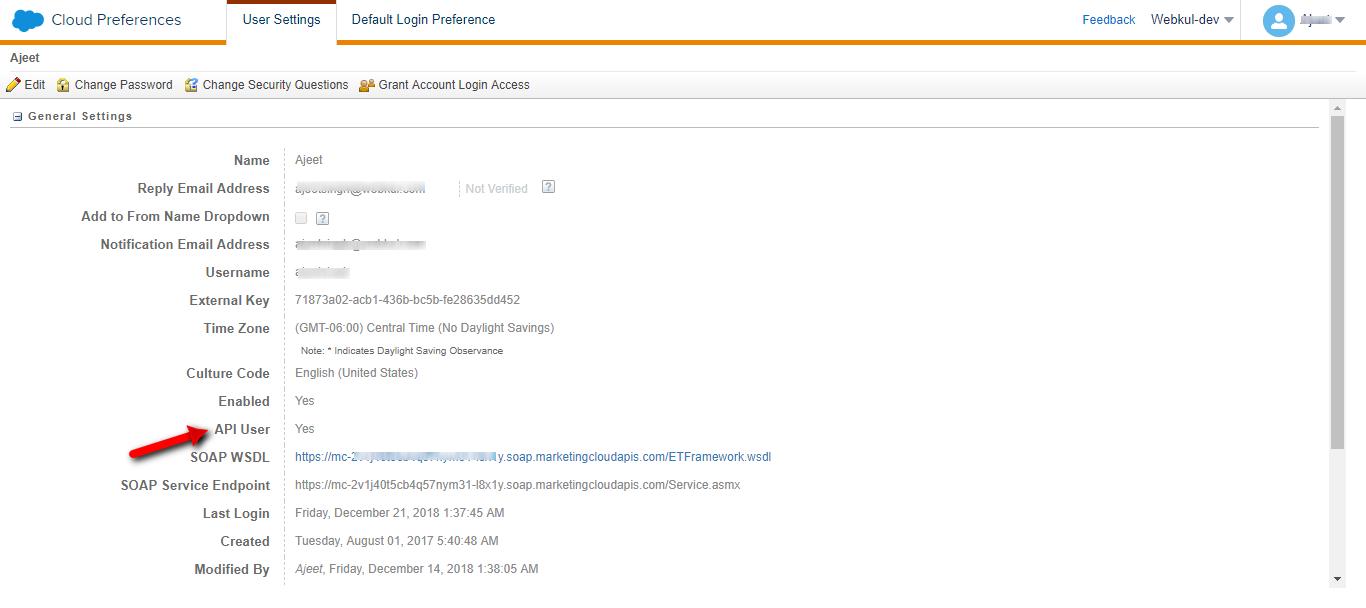
You need to have API User enabled in the “user” section.
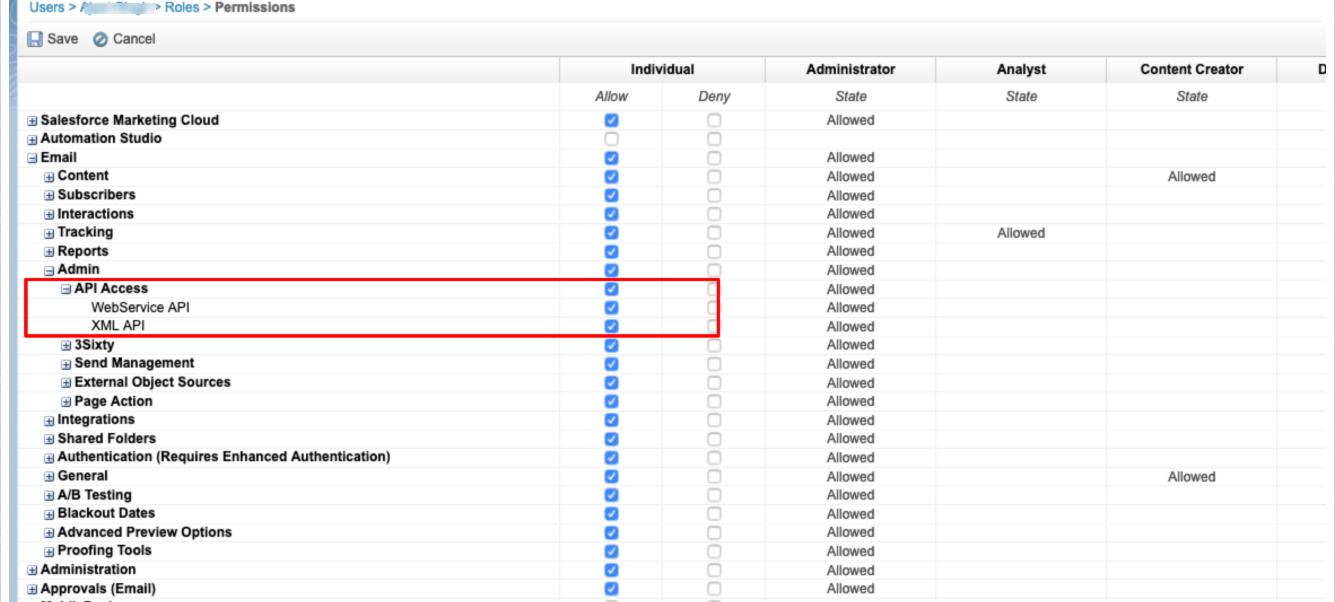
 Now, you have to set the Grant The User Access To The WebService role for the user.
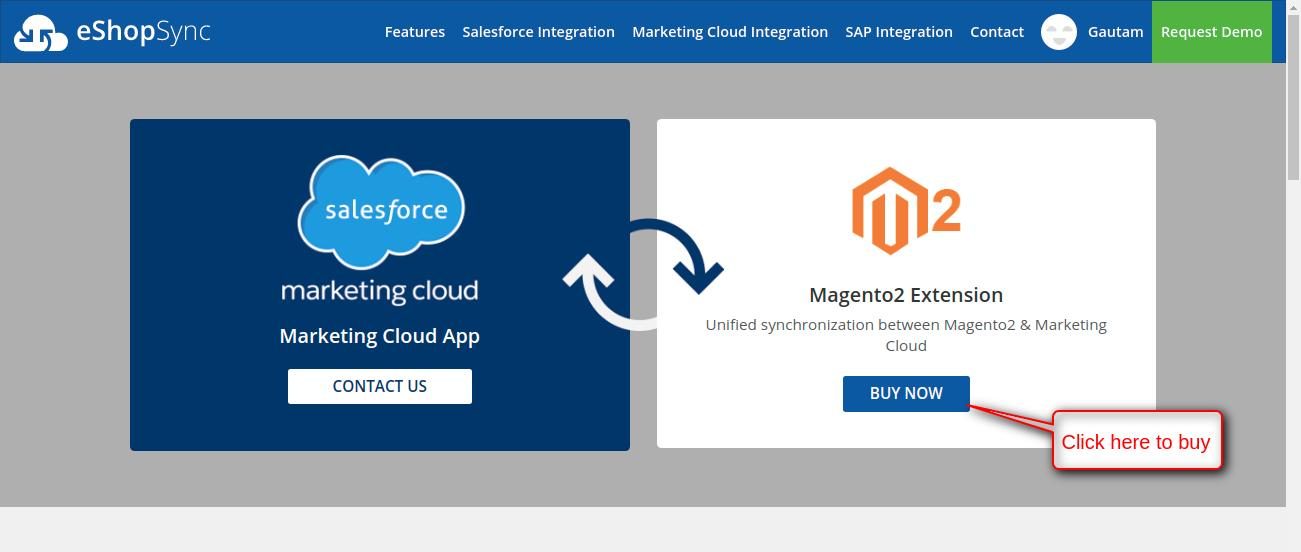
 On PrestaShop end, you need to do the following setup:
-
Now, After purchasing the zip file, you have to upload the zip file on your PrestaShop site and follow the steps for the add-on installation.
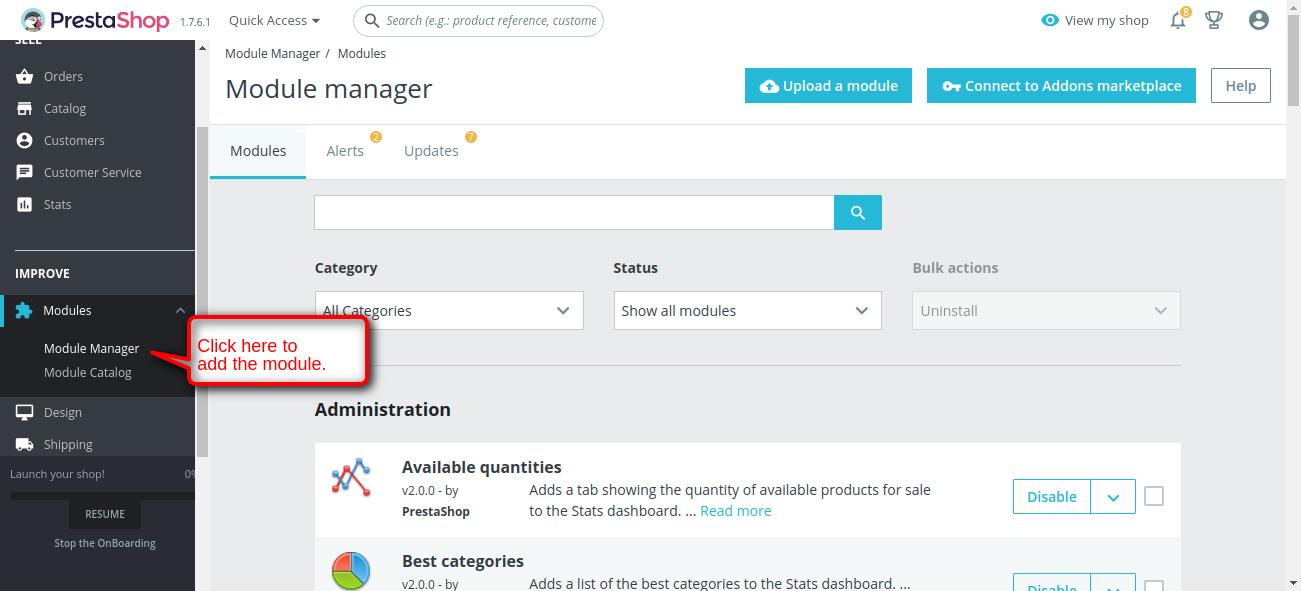
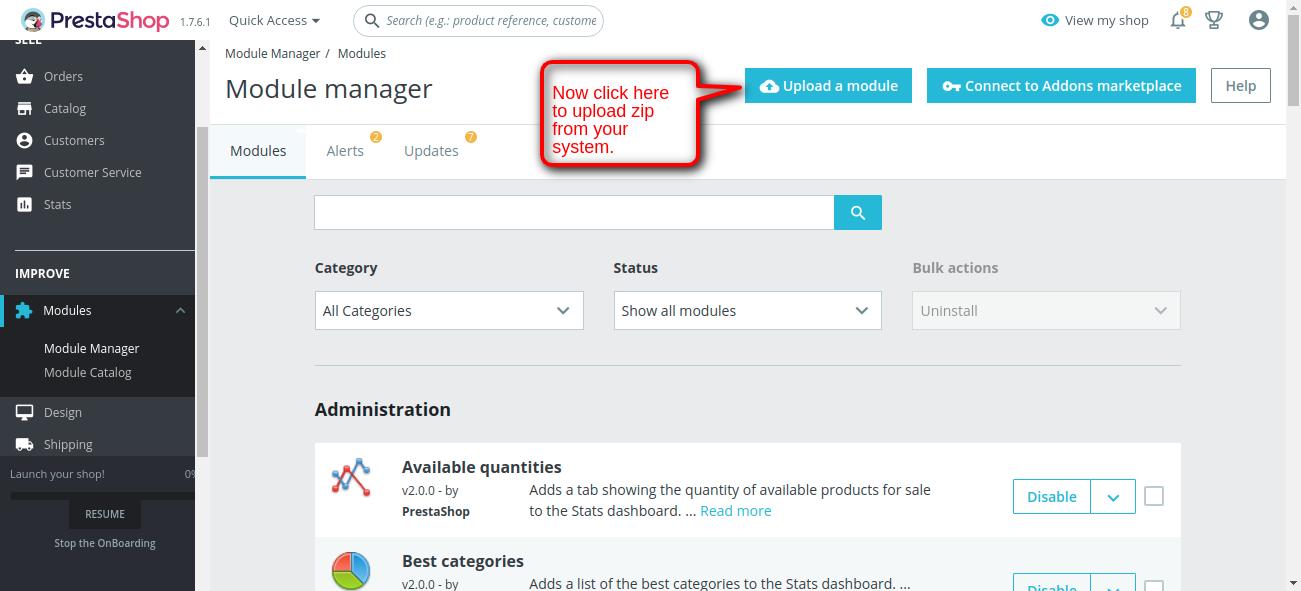
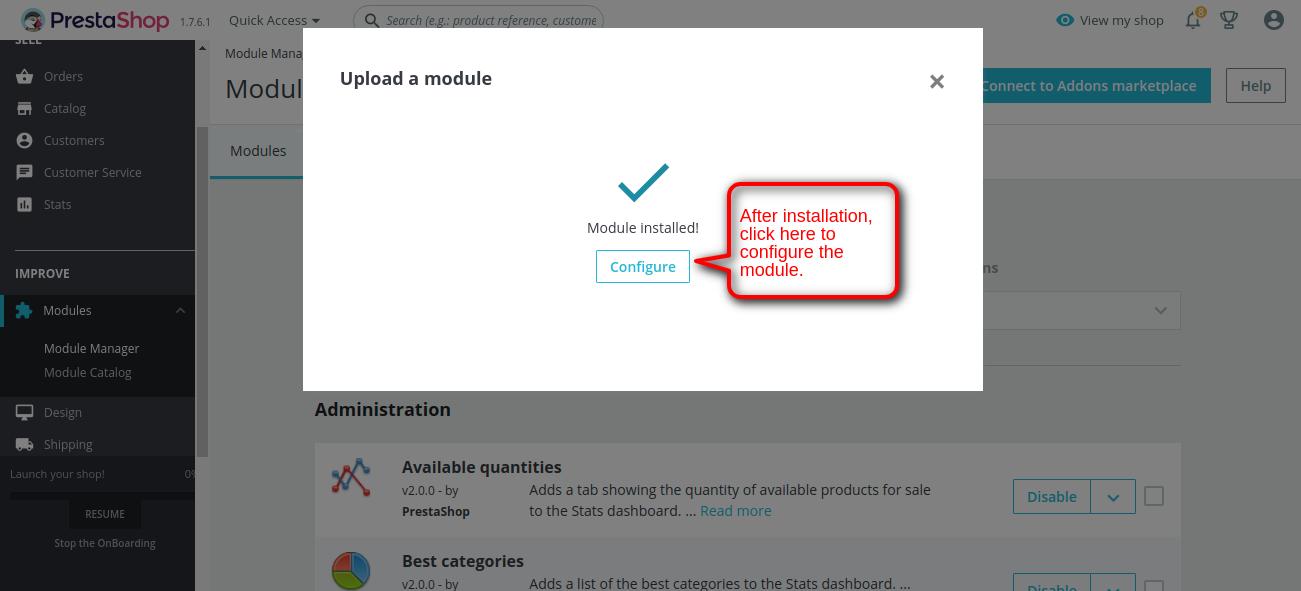
- The application has been installed successfully in the above snapshot. Now, for the Configuration, enter your user name, password, and other required fields as shown in the snapshot below, and save to use the application.
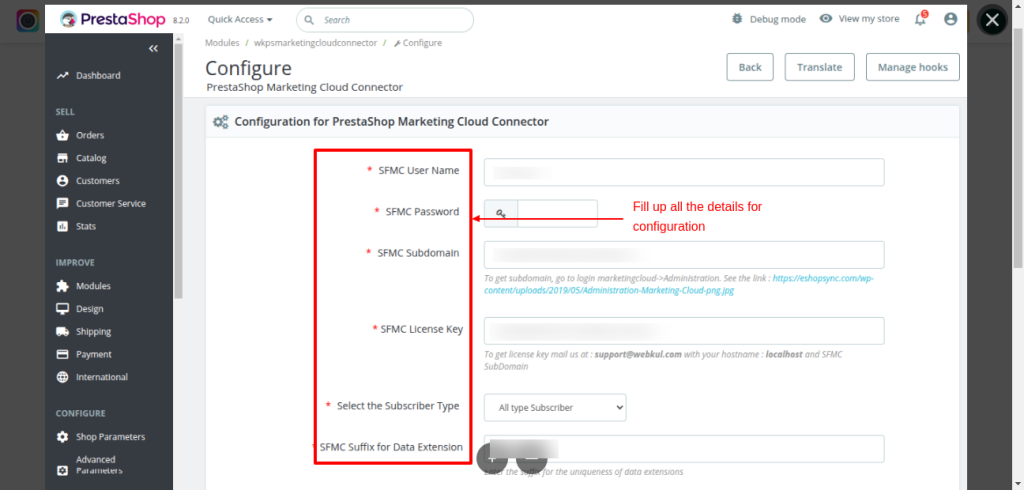
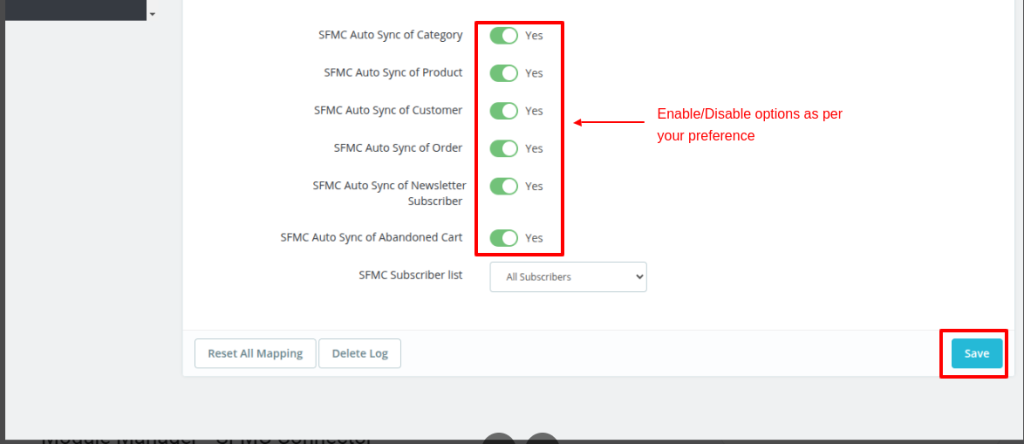
- In the application configuration, you must insert the SFMC Username and password and specify the SFMC Mode, Subdomain, and Activation Key. You can also switch on AutoSync and select the SFMC list ID.
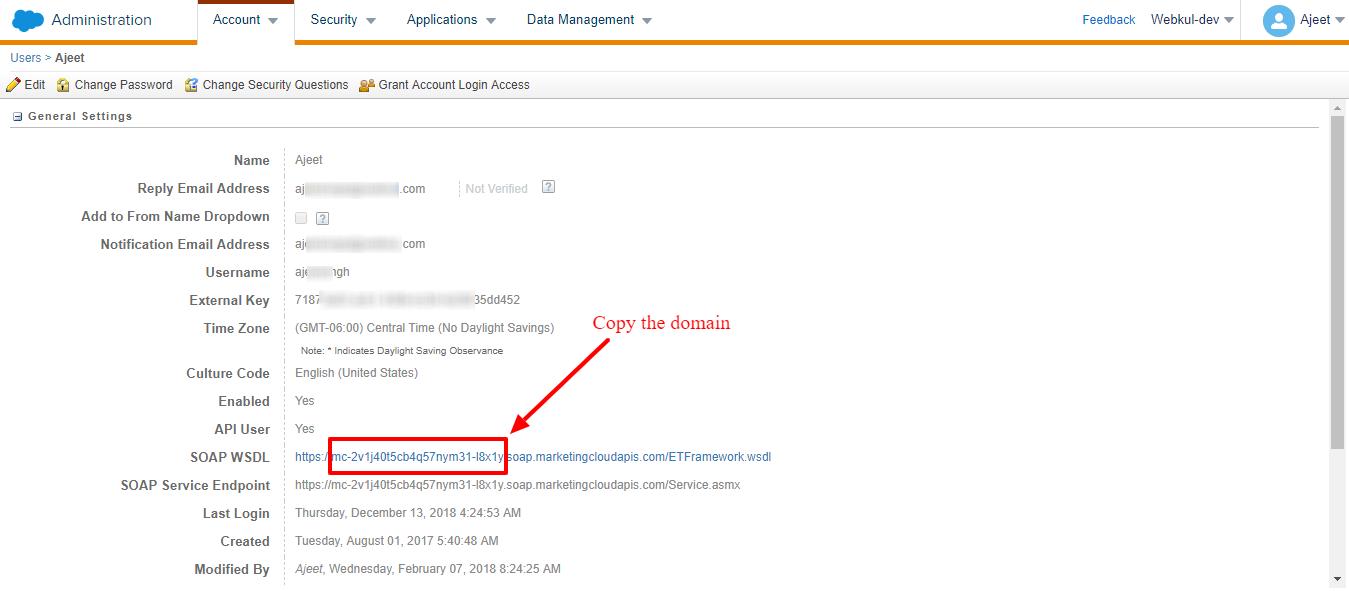
- To get the subdomain, go to Administrator-> Account -> Users -> Click on the username -> In the SOAP WSDL field, select and copy the domain, then paste it into the SFMC Subdomain field.
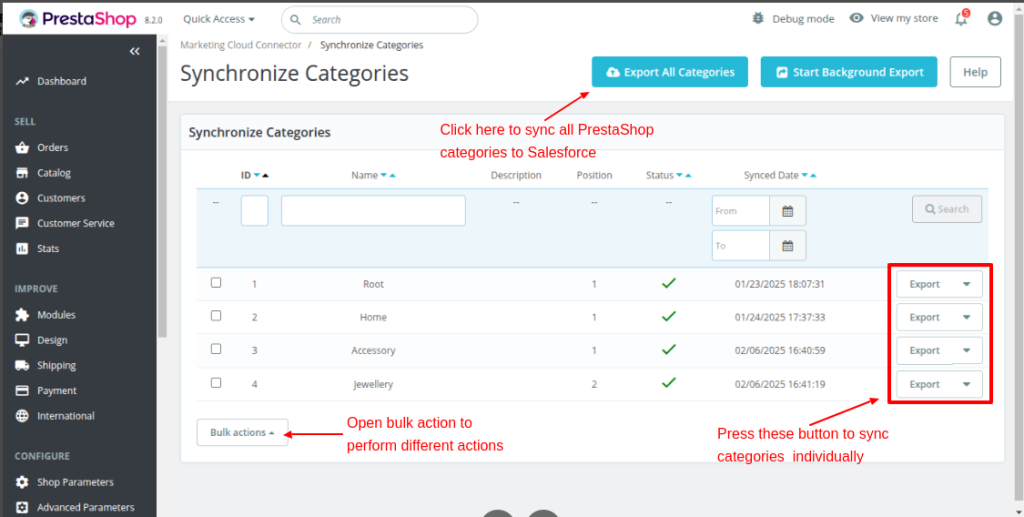
- Sample presentation of how this connector works. Let’s consider combining the category sync from your PrestaShop store with your Salesforce Marketing Cloud Org.
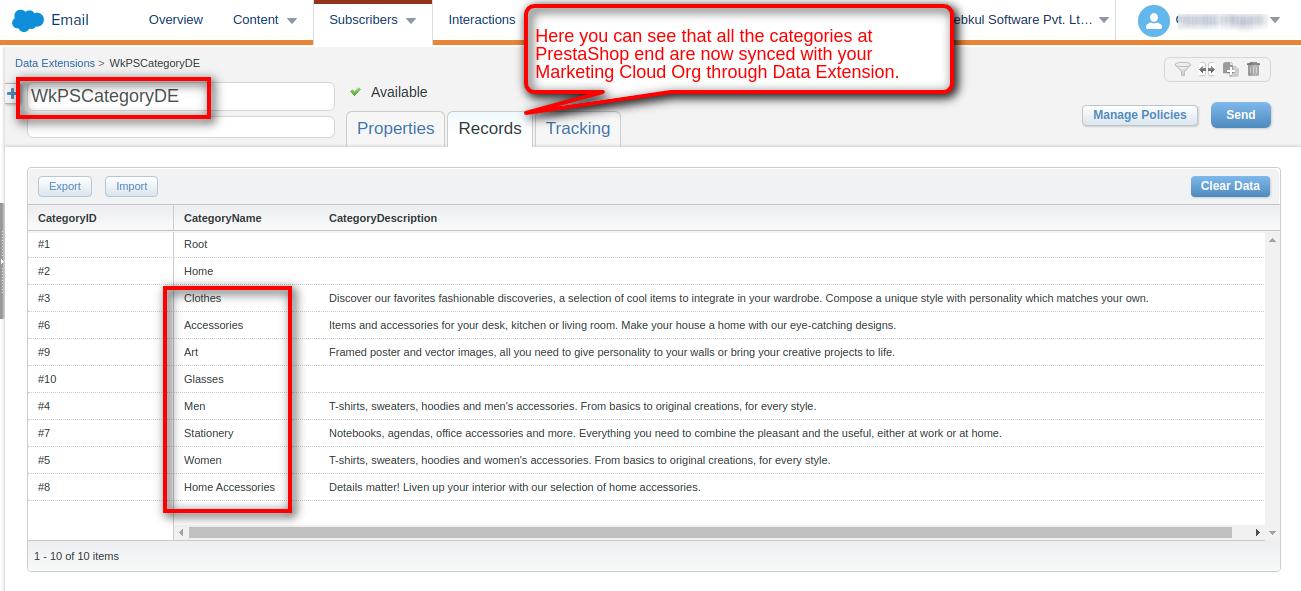
- Go to your SalesForce Marketing Cloud Org and “Subscribers”>” Data Extensions”> “WkPSCategoryDE” and then you will get the required data.

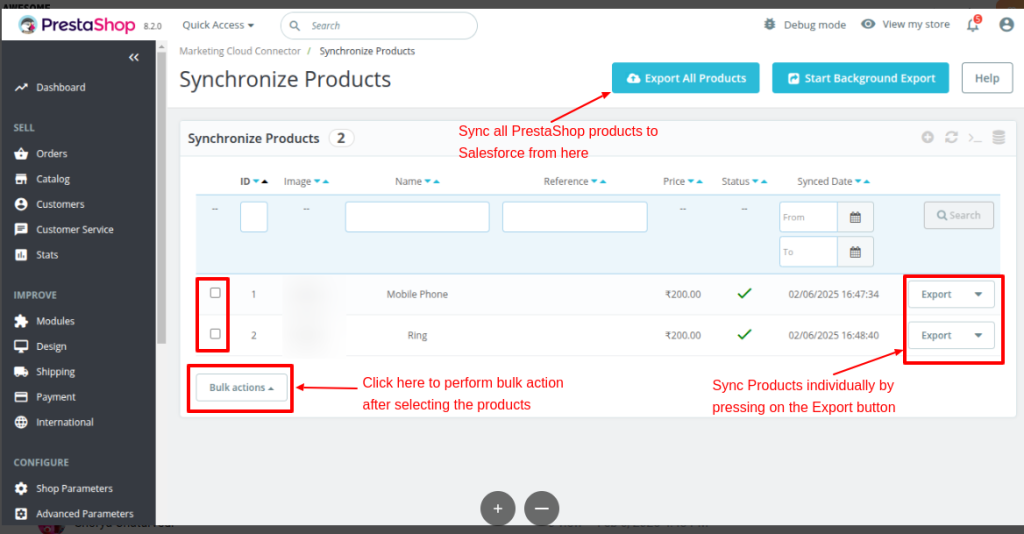
- Similarly, you can sync products from the PrestaShop end to the Salesforce Marketing Cloud Org.
- Now, go to your Salesforce Marketing Cloud Org. Under Subscribers>Click on Data Extensions> Select WkPSProductDE and then you will get the required data.
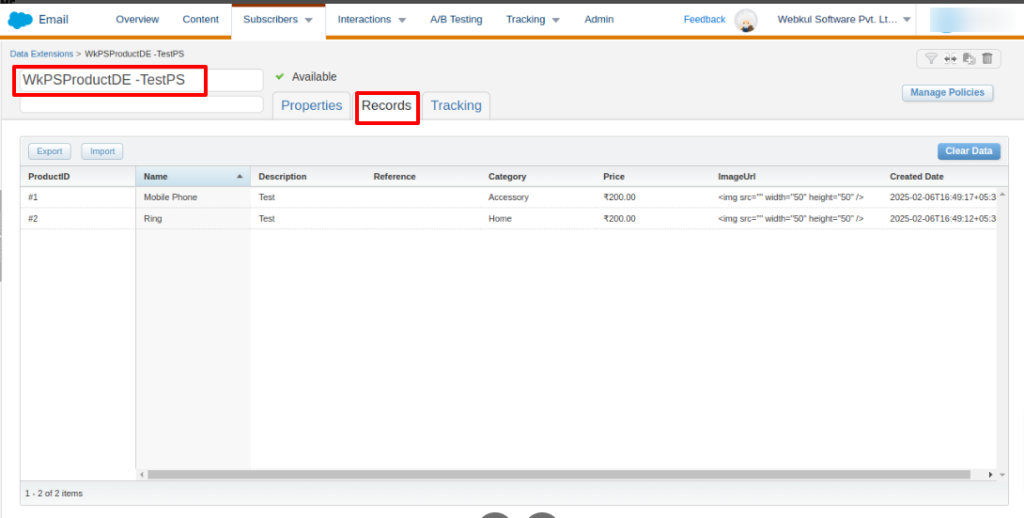
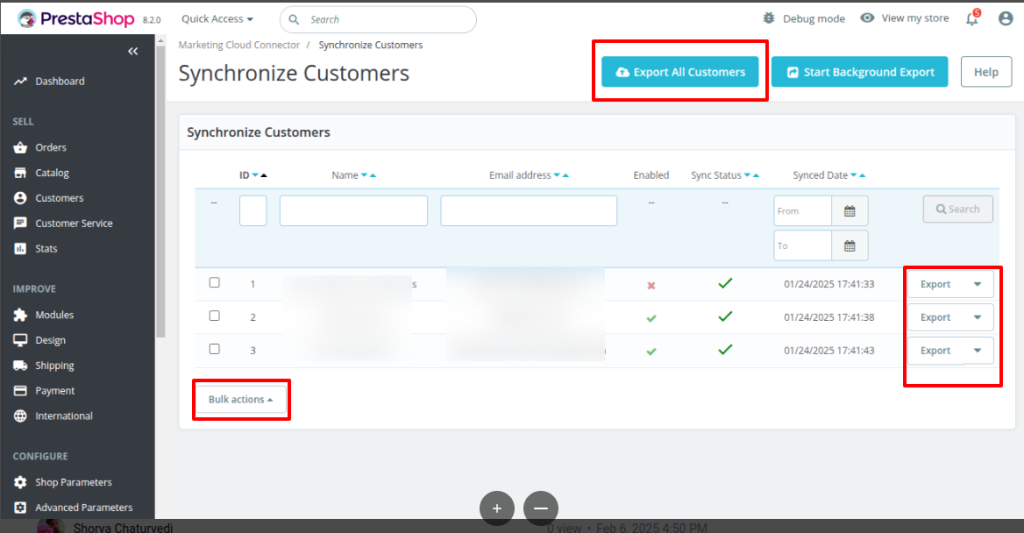
- Sync Customers from the PrestaShop end to the Marketing Cloud Org.
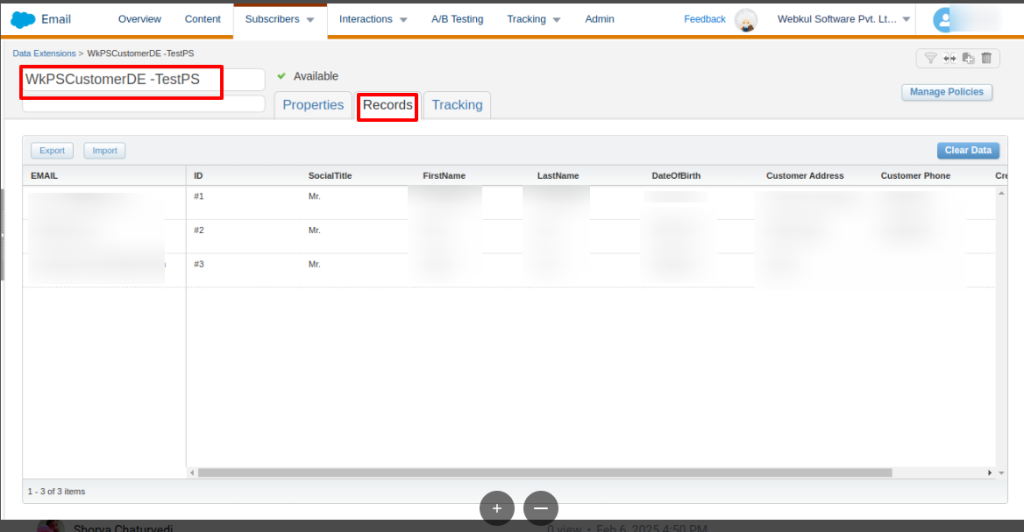
- Further, check synced PrestaShop Customer data on Salesforce Marketing Cloud org.
- Sync Newsletters Subscriber’s details from the PrestaShop end to the Marketing Cloud Org.
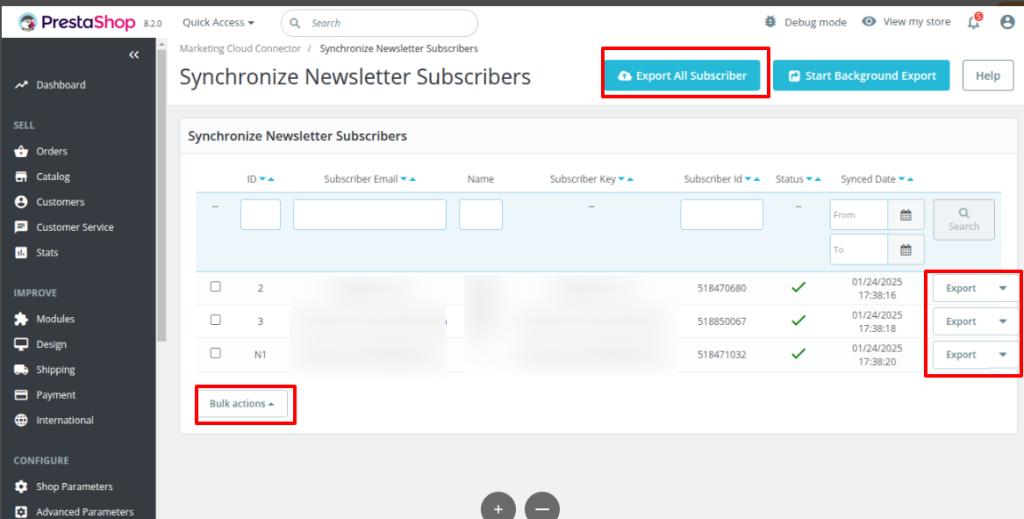
- See your synced records in your Salesforce Marketing Cloud org.
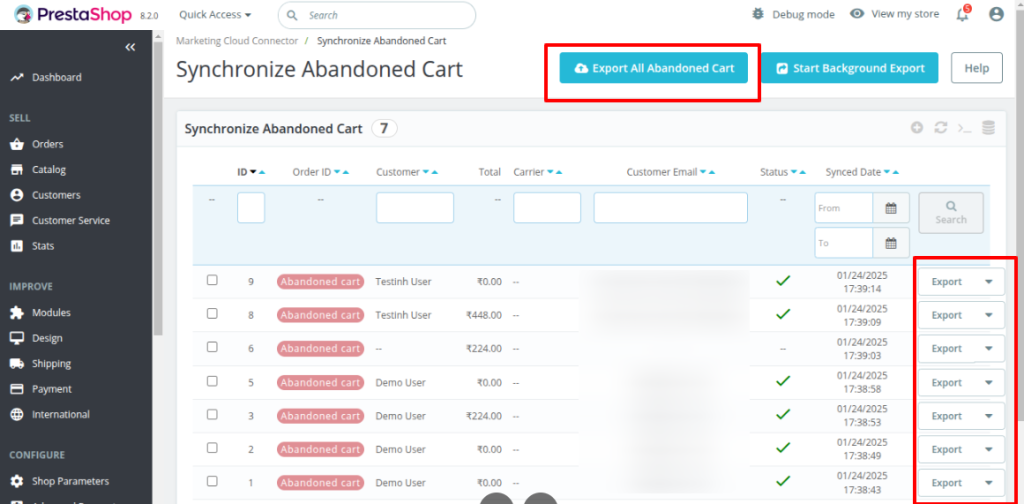
- Sync Abandoned Cart details to the Salesforce Marketing Cloud Org.
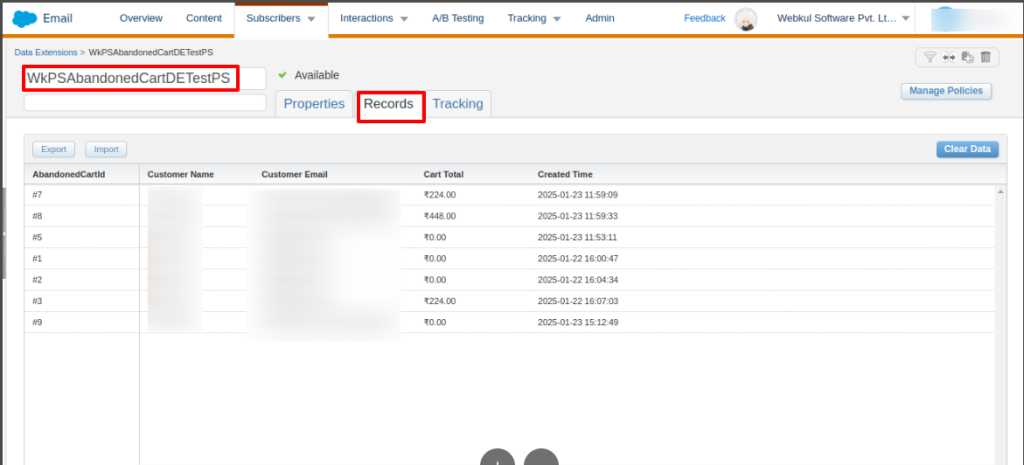
- See your synced Abandoned Cart records in Salesforce Marketing Cloud.
Video Tutorial->
- That’s all for this Connector, for any further query, Click Here To Create Ticket.
- To view all our applications in AppExchange, go to Webkul AppExchange Apps.
Read About: Salesforce Marketing Cloud Magento2 Connector Installation and Setup

. . .
Be the first to comment.