How to use the Report Builder in Salesforce
Updated 14 October 2025

In this blog we will learn how to build reports using report builders in Salesforce using the database of the organisation of any subject. Salesforce provides us with a built-in translator, allowing us to ask our database all the questions we want through a point-and-click interface.
Report Builders in Salesforce
Enable the report builder for all users-
1) If you have to enable the report builder for all users, go to Setup > Customise > Reports and Dashboard > Reports and Dashboard Settings
2) Click Yes, Enable Report Builder for All Users.
Select report type-
For standard report types, the Sobjects are represented in the report type name.
For custom report types, Setup > Create > Report Types, then select Report Types to see the primary and related objects.
There are two types of report types:
1) Primary object with related object.
2) Primary object with or without related object.
The Report Builder-
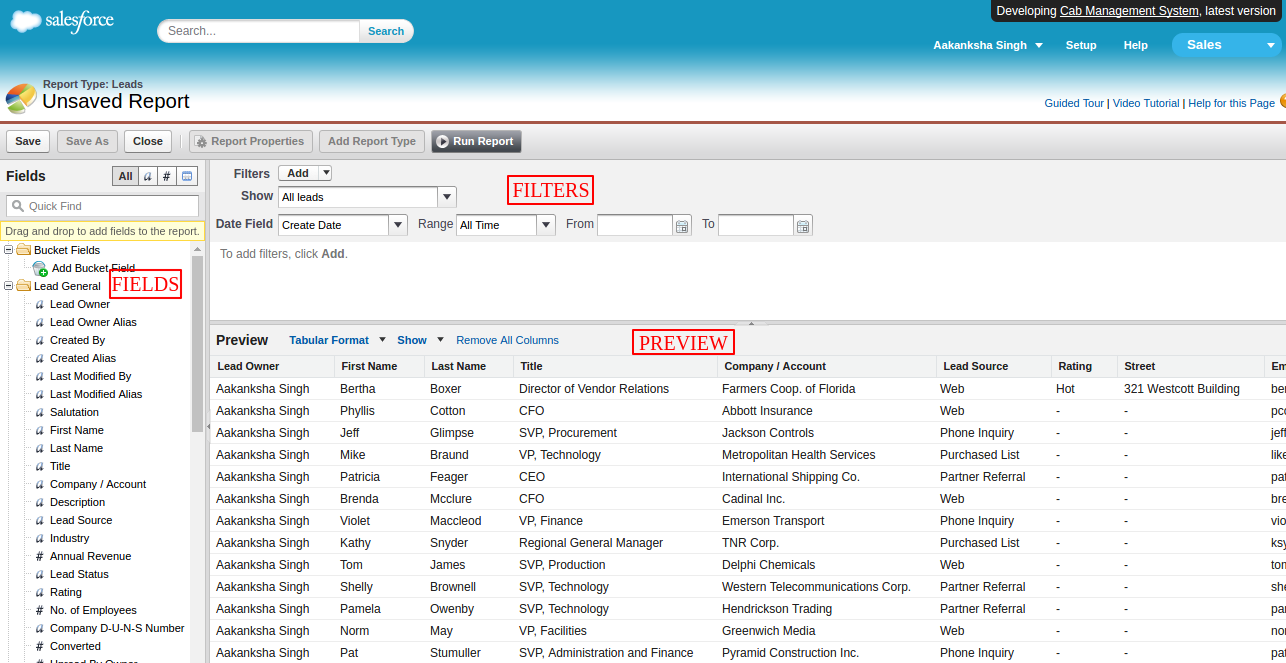
The report builder can be divide into three main sections:
1) Field pane : You can drag and drop fields to view.
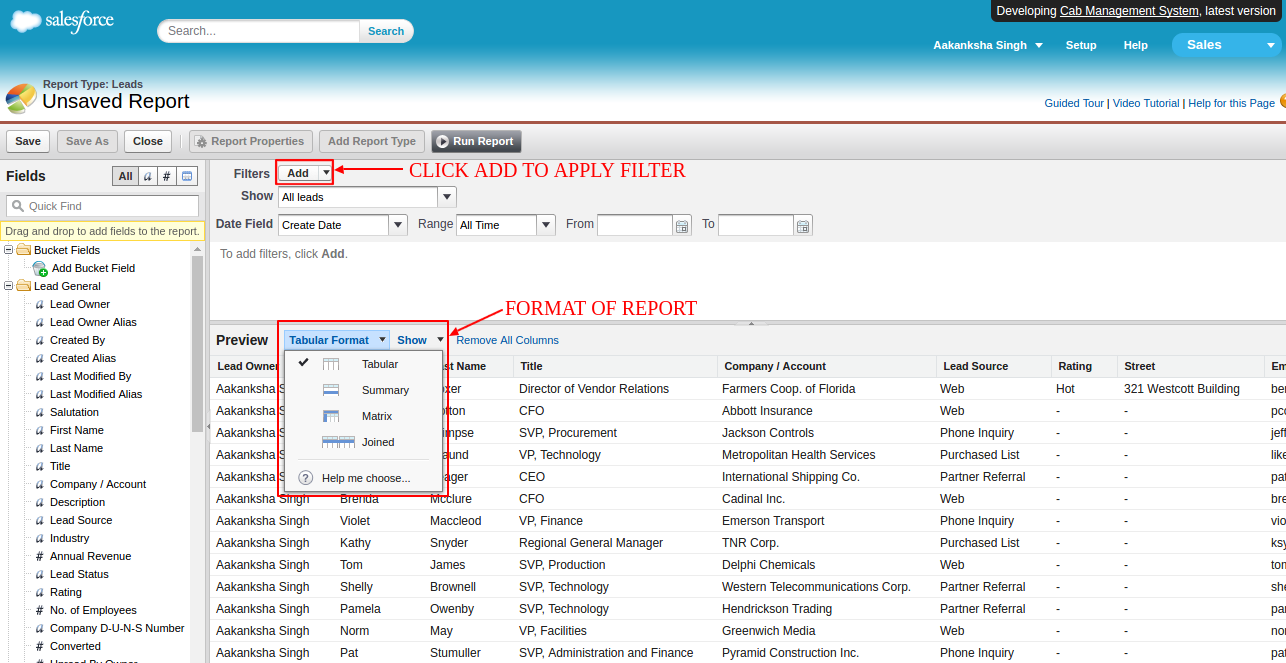
2) Filter pane : You can add the filter according to a time span or by the value of a field.
3) Preview pane : You can view the output here. You can change the format of the view.
Support
That’s all for How to use the Report Builder in salesforce, still have any issue feel free to add a ticket and let us know your views to make the code better https://webkul.uvdesk.com/en/customer/create-ticket/

Be the first to comment.