Sync Time Zones with World Clock Lightning Component
Know your customer’s local time, right within Salesforce. Make every interaction timely and thoughtful.
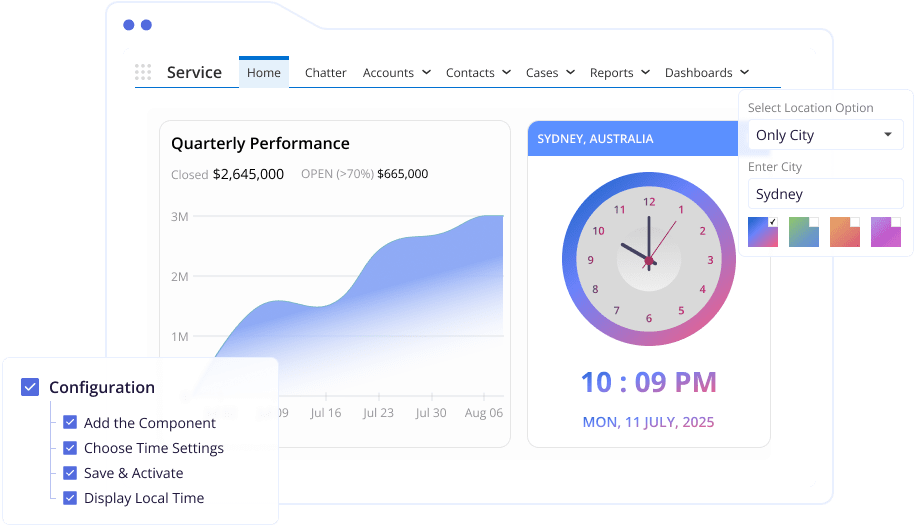
World Clock Lightning Component for Salesforce
Global relationships mean global schedules, but manually managing time zone differences is challenging. You’re booking meetings, planning follow-ups, or sending messages, but you’re never quite sure if it’s the right time. That’s where things get missed, and momentum is lost.
Introducing the World Clock Lightning Component – your Salesforce-native time intelligence tool. Know exactly what time it is for your customer without switching tabs and performing any calculations.
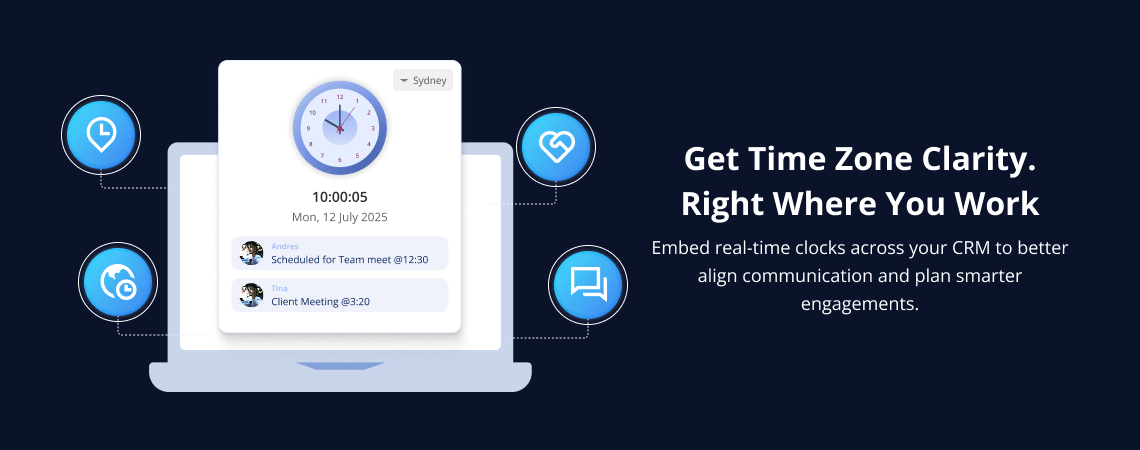
Take the Guesswork Out of Scheduling
The native application brings local time visibility to your Salesforce Org, so your team can:

View the current time for leads, contacts, or accounts

Automatically fetch time based on Billing City, Zip Code, or Country

Embed it on any page — even Community Portals and Mobile App
Why Choose the World Clock Lightning Component?
Don’t manage your records. Work with them in real-time.

Contextual Time Awareness

Fully Configurable

Customizable Look & Feel

Mobile-Ready

Works Everywhere

Seamless Native Integration
How Does It Work?
It’s designed to be simple. Get clarity in just a few steps.
01
Drag and drop the World Clock onto any Lightning Record, Home, or Community Page using Lightning App Builder.
02
Configure your clock by selecting whether it should fetch time based on City, Zip Code, or Country/City.
03
Apply the changes, hit Activate, and you’re all set. The clock goes live immediately.
04
The component fetches and displays time dynamically. If no address is available, it shows your system time, so it never goes blank.
Why Make Time Zones Visible?
Sure, you could check time zones online — but will your entire team do that? Every time? With the World Clock Lightning Component:
Reduce delays by knowing when your customer is active account

Avoid scheduling mishaps across different regions

Create more thoughtful, timely, and personalized communication
Don’t Let Time Zones Disrupt Your Workflow
Plan better, connect smarter, and close faster with the World Clock Lightning Component.