
This blog describes about, how to use google api key in visualforce in salesforce. API key act as both a unique identifier and a secret token for authentication.
Creating the API key
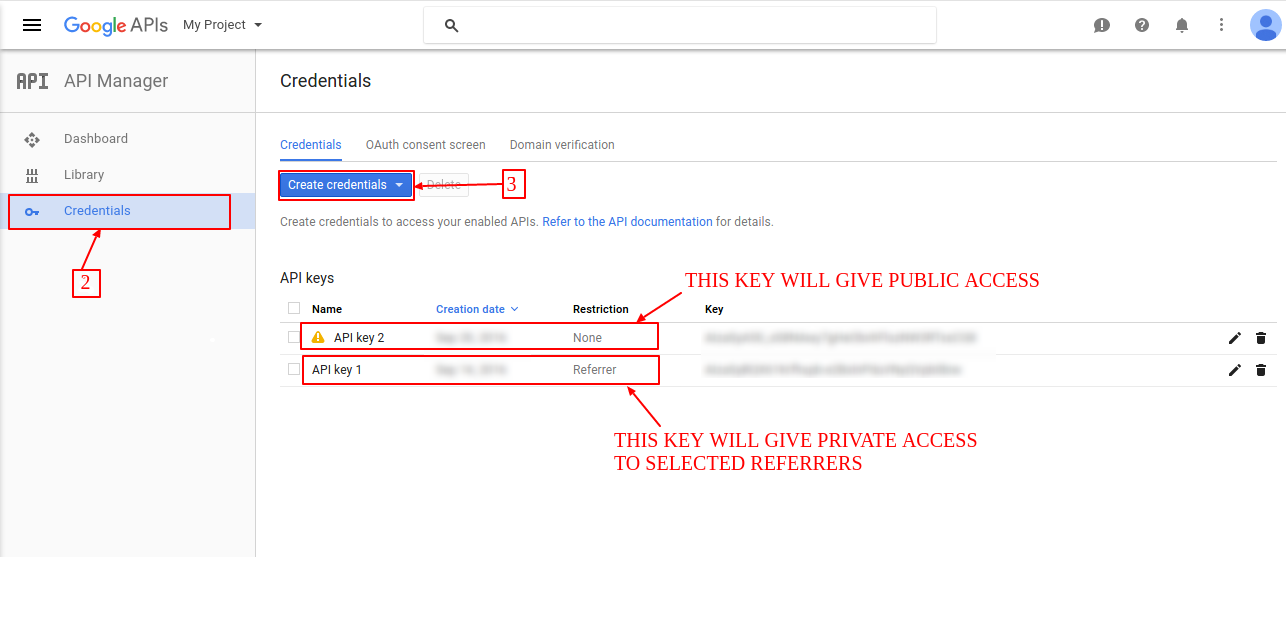
1) Go to the given link https://console.developers.google.com
2) Click Credentials
3) Click Create credentials

Using API key in visualforce
You can refer to the following code for understanding how to use google api in visualforce:
<apex:page applyHtmlTag="false" applyBodyTag="false" docType="html-5.0" showHeader="false" standardStylesheets="false">

  <!--
   /**
   * Webkul Software.
   *
   * @category  Webkul
   * @author    Webkul
   * @copyright Copyright (c) 2010-2016 Webkul Software Private Limited (https://webkul.com)
   * @license   https://store.webkul.com/license.html
   */
   -->

  <html xmlns="http://www.w3.org/2000/svg" xmlns:xlink="http://www.w3.org/1999/xlink" lang="en">
    <head>
    <title>Simple Map</title>
    <meta name="viewport" content="initial-scale=1.0">
    <meta charset="utf-8">
    <style>
      html, body {
        height: 100%;
        margin: 0;
        padding: 0;
      }
      #delhi {
        height: 100%;
      }
    </style>
    </head>
    <body>
      <div id="delhi"></div>
      <script>
        var delhi;
        function initMap() {
          delhi = new google.maps.Map(document.getElementById('delhi'), {
            center: {lat: 28.6139, lng: 77.2090},
            zoom: 8
          });
        }
        </script>
      <script src="https://maps.googleapis.com/maps/api/js?key=Your_API_Key&callback=initMap" async="true" defer="true"></script>
    </body>
  </html>
</apex:page>
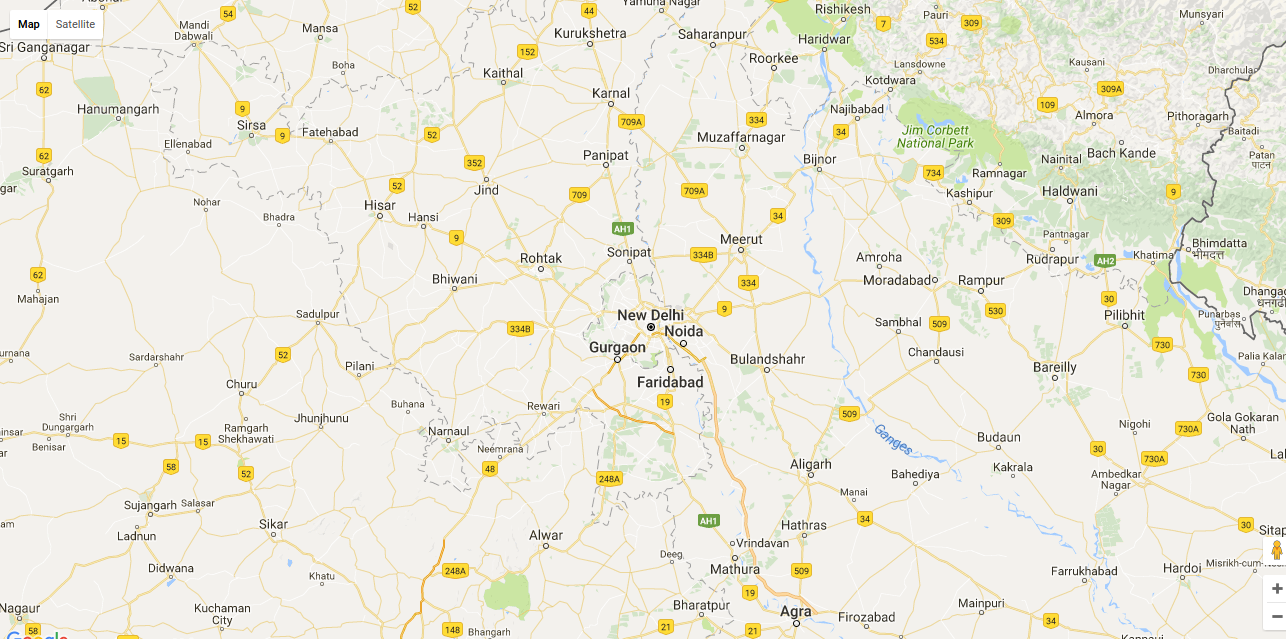
Output:
Support
That’s all for how to use api key in visualforce, still have any issue feel free to add a ticket and let us know your views to make the code better https://webkul.uvdesk.com/en/customer/create-ticket/