

Introducing Multivendor Marketplace for Zoho Commerce. The application is designed to empower store owners like you. It seamlessly converts your single-admin online store into a dynamic marketplace.
You can invite multiple sellers to showcase their products on your e-commerce marketplace. Our application seamlessly integrates with your existing Zoho Commerce store, ensuring a smooth transition.
You can expand your product offerings and attract a wider customer base, driving increased sales.
Key Features of Multivendor Marketplace for Zoho Commerce:
Admin End:
- Centralized Control: Complete oversight of your marketplace, managing sellers, their products, and orders from a single dashboard.
- Seller Approval: Carefully curate your marketplace by approving or rejecting seller’s products.
- Product Synchronization: Effortlessly sync products between your Zoho Commerce store and the marketplace, ensuring consistency and efficiency.
- Seller Admin Management: Create seller admins. Also, grant and revoke access to seller admins, streamlining their operations.
- Subscription Management: Offer flexible subscription plans to sellers, providing them with the tools and resources they need to succeed.
- Transaction Oversight: Monitor and manage transactions, approving or disapproving them as needed.
- Scalability: Easily accommodate growth by creating new seller accounts based on your subscription plans.
- PayPal Payment Platform: Admin can add their PayPal platform details for a smooth payment process.
Seller End
- Separate Control Panel: Provide sellers with a user-friendly interface to manage their products and orders.
- Order Management: Allow sellers to track and update the status of their orders, ensuring timely fulfillment.
- Product Listing: Empower sellers to add and customize their products, including variants and high-quality images.
- Seller Admin Management: Enable sellers to delegate tasks to their admins for efficient operations.
- Order Status: Give sellers the ability to mark orders as fulfilled once they’ve been shipped.
- PayPal Payment Platform: Sellers can add their PayPal platform details to receive their product sales payments.
Prerequisite
Ensure you have an existing Zoho Commerce account to use the Multivendor Marketplace for Zoho Commerce. Then, only your application integrates with your Zoho Commerce account.
Get Started with Multivendor Marketplace for Zoho Commerce
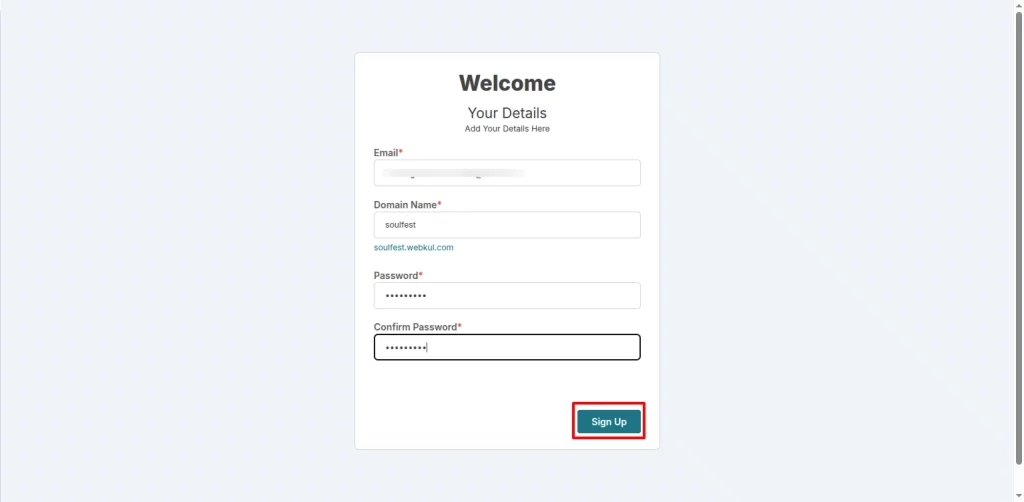
To get started, sign up for our multivendor platform. First, go to the sign-up page for the Multivendor Marketplace for Zoho Commerce. Fill in your details and click on the signup button.

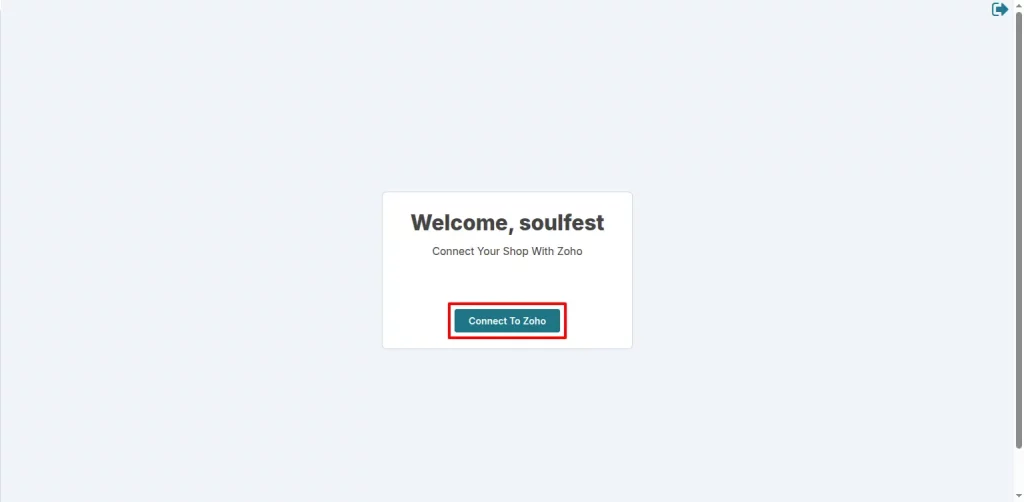
Next, in a new window, click the ” Connect to Zoho ” button.
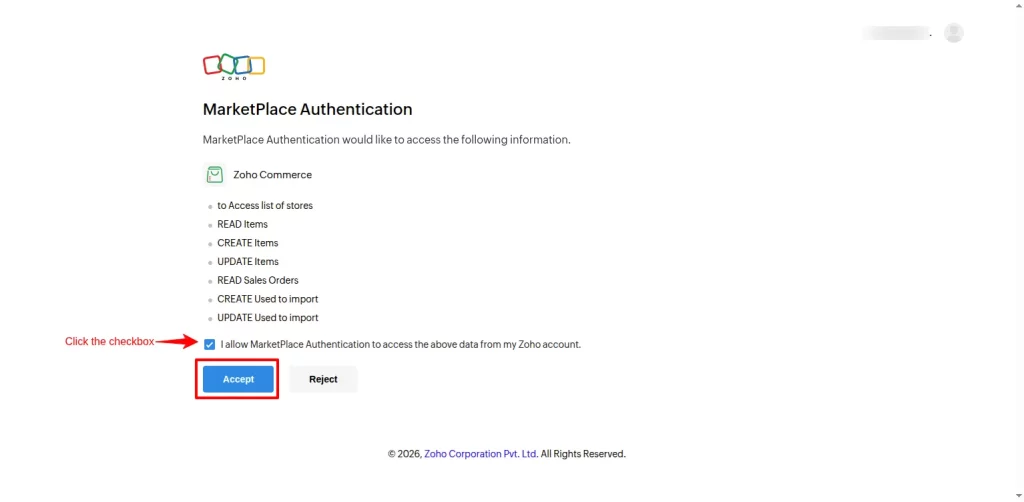
Now, click the checkbox to accept the authentication conditions.
This will enable the platform to automatically fetch your store details. Finally, select your preferred Zoho site and click on “proceed”.
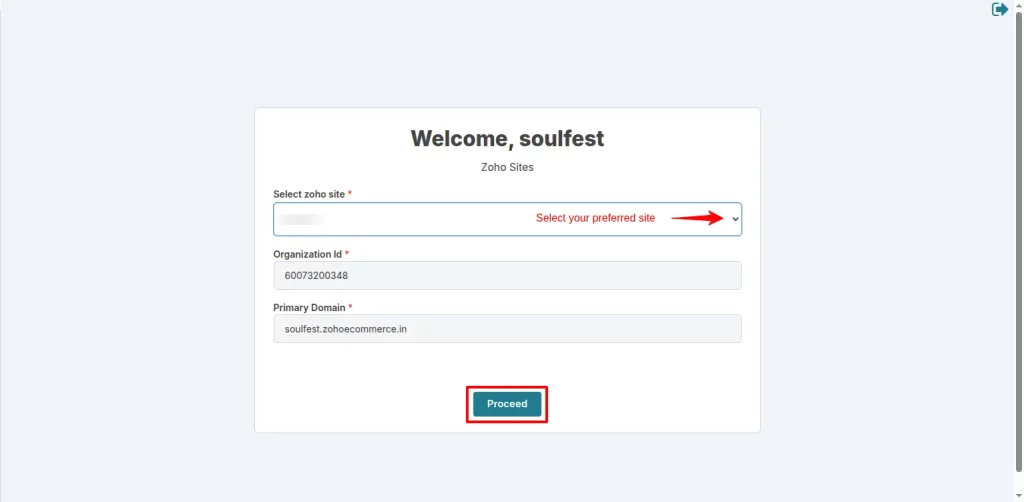
Your multivendor account has been successfully created.
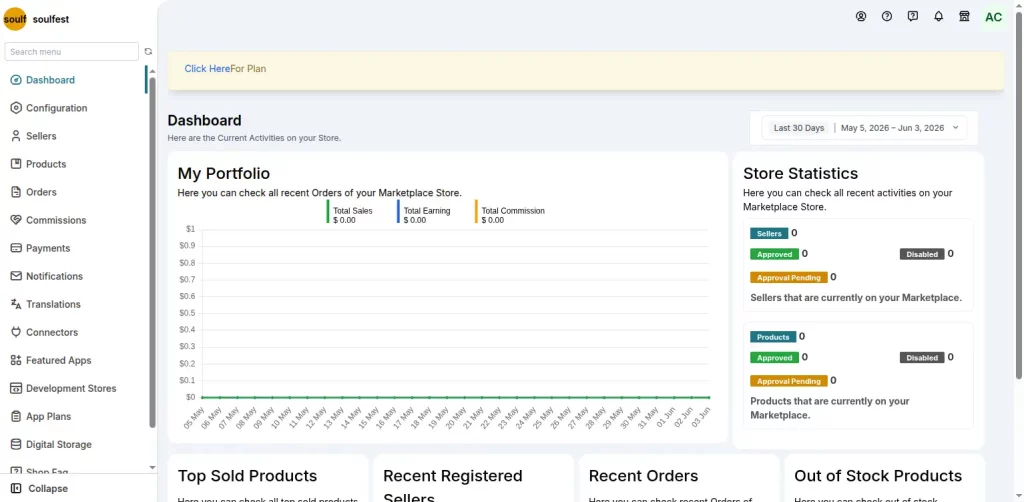
Additionally, you will also receive an email with information regarding your multivendor seller invitation sign-up URL and your account login URL.
Using this URL, you can invite people to sign up as sellers on your store and list their products.
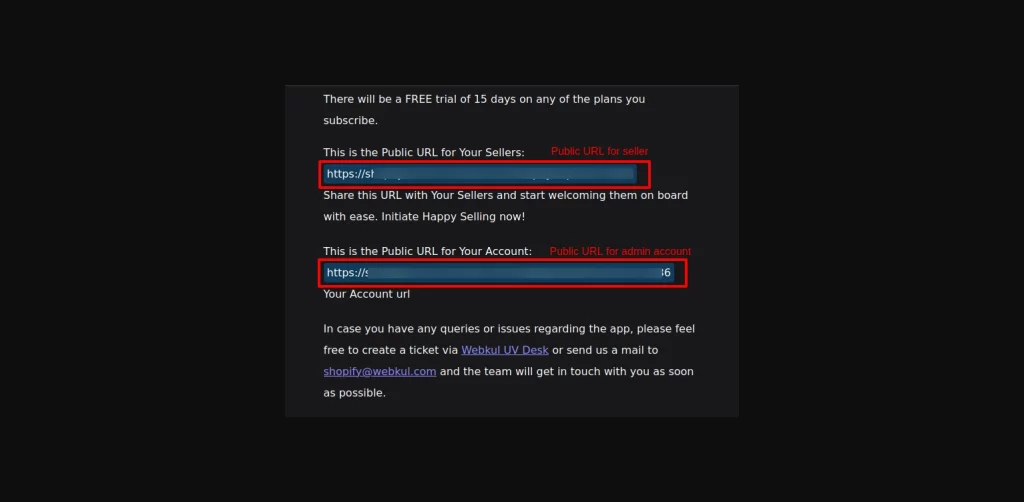
Seller Account Registration and Activation
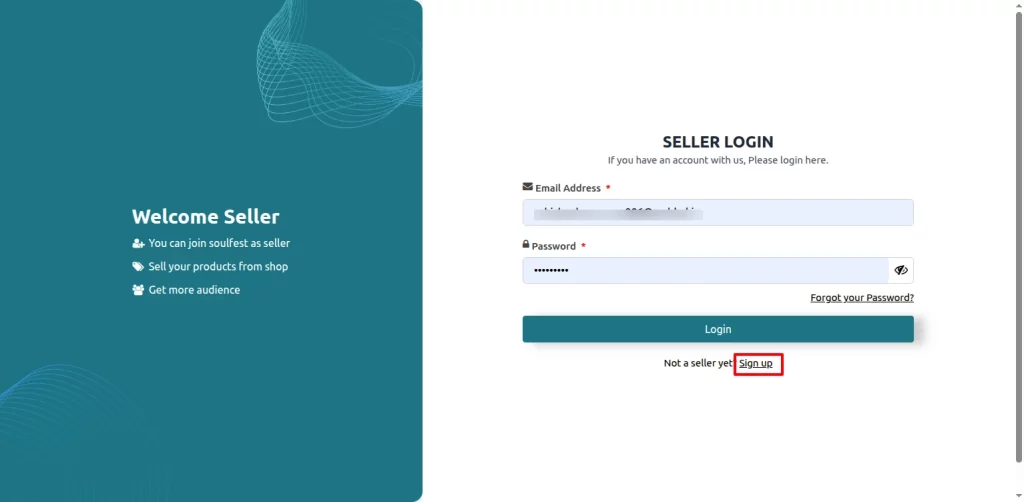
After successfully creating an account on the multivendor platform, the admin can invite sellers using their invitation URL. They can visit that URL and click Sign Up to create their account.
Add your details and create an account.
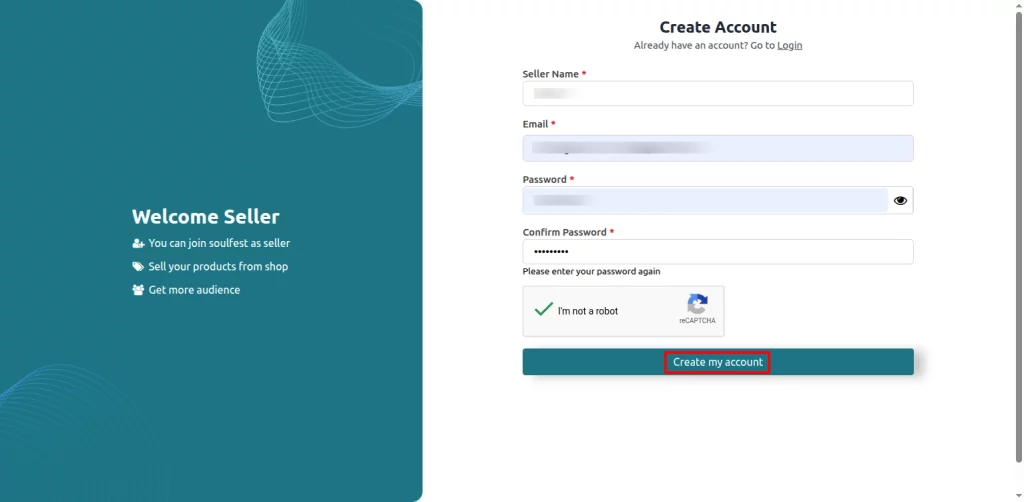
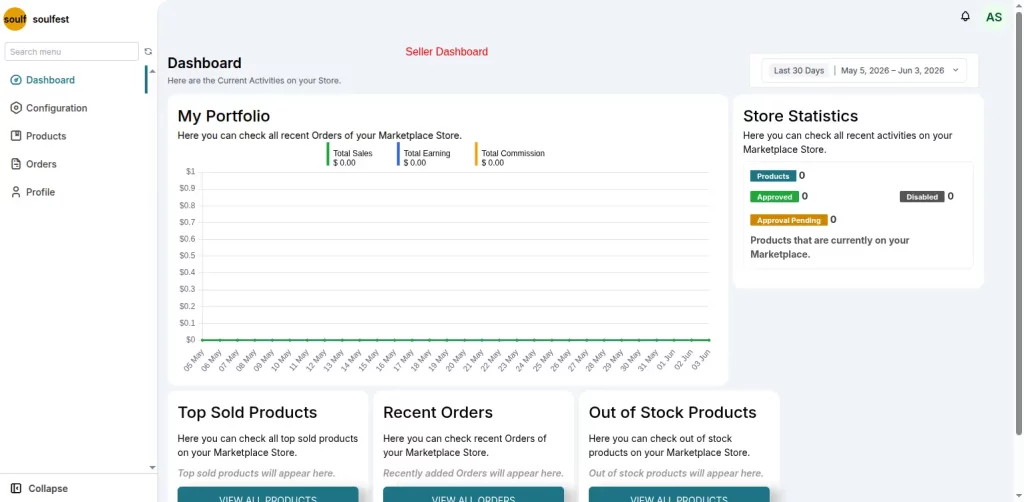
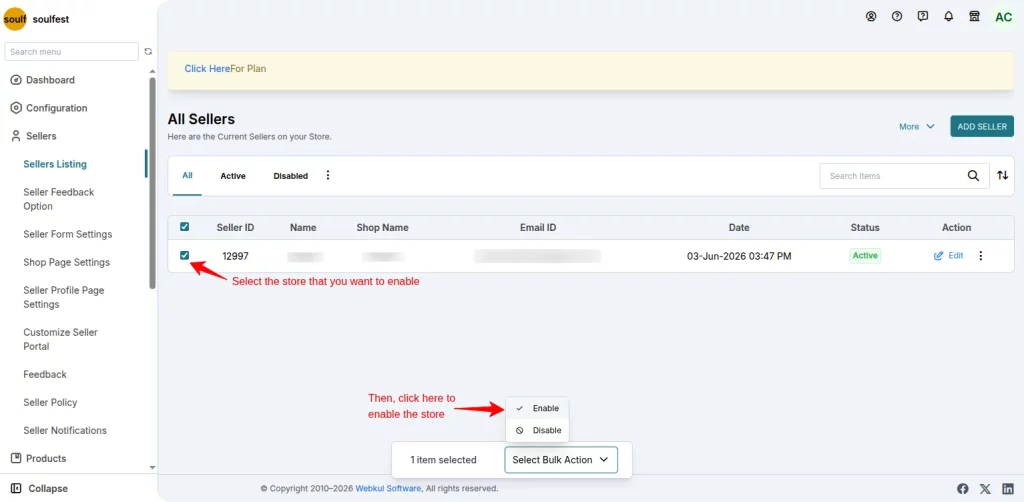
After successfully creating the seller account, the admin needs to enable it from its dashboard.
In this new window, select the store that you want to enable and click on the enable button.
Next, a confirmation message will pop up in the same window. Click on the confirm button, and the seller account will be enabled. Now, the seller can use the account to list their products.
How Sellers Can Add Products On The Multivendor Platform
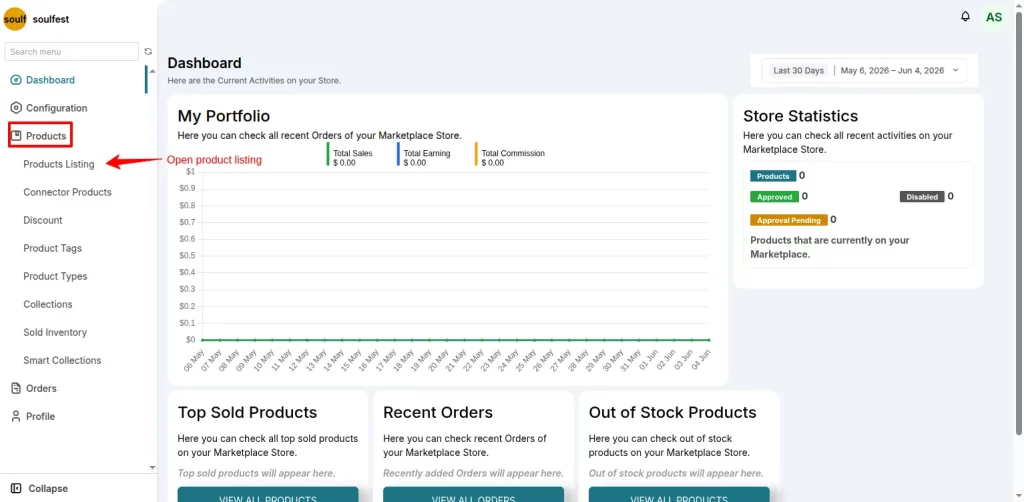
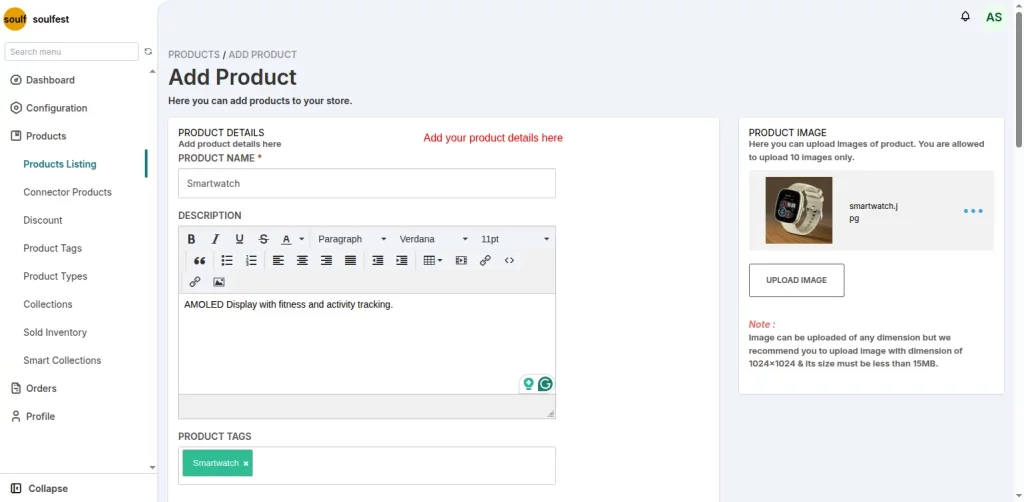
Once the store admin approves the seller account, the seller can now list the product on the store. To do that, go to the seller Dashboard > Product Listing.
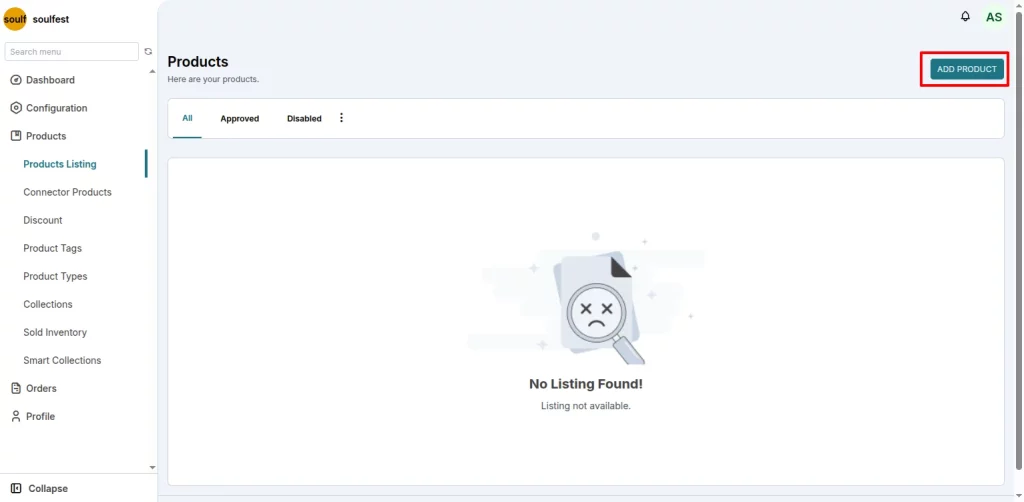
Click on Add Product.
In this new window, add the product details, and then save changes.
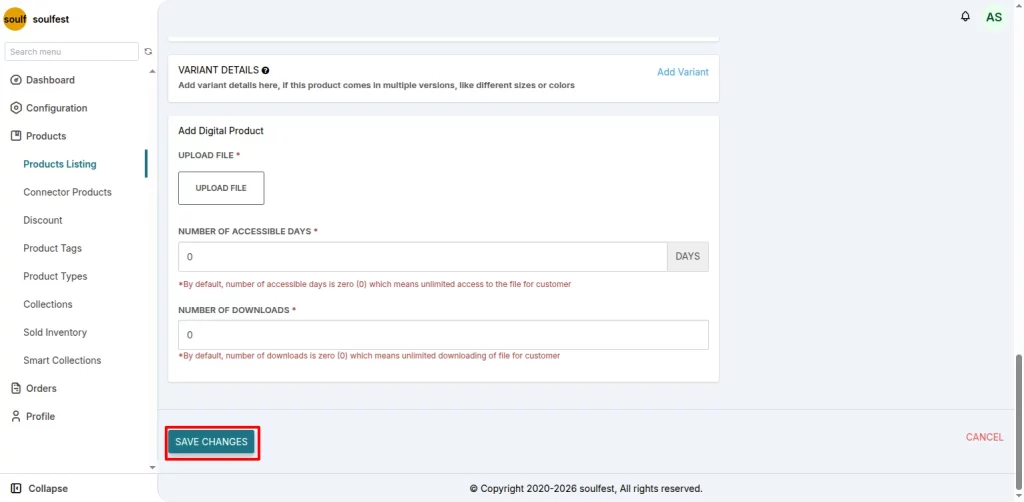
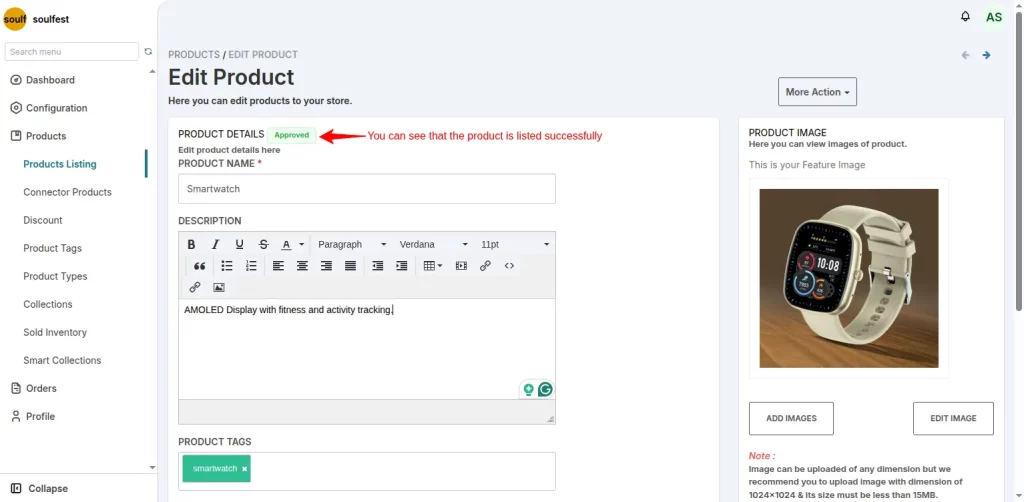
You can see the product has been added on the seller’s side, but it takes a minute for the approved status to appear. And once approved, the product goes live on the store.
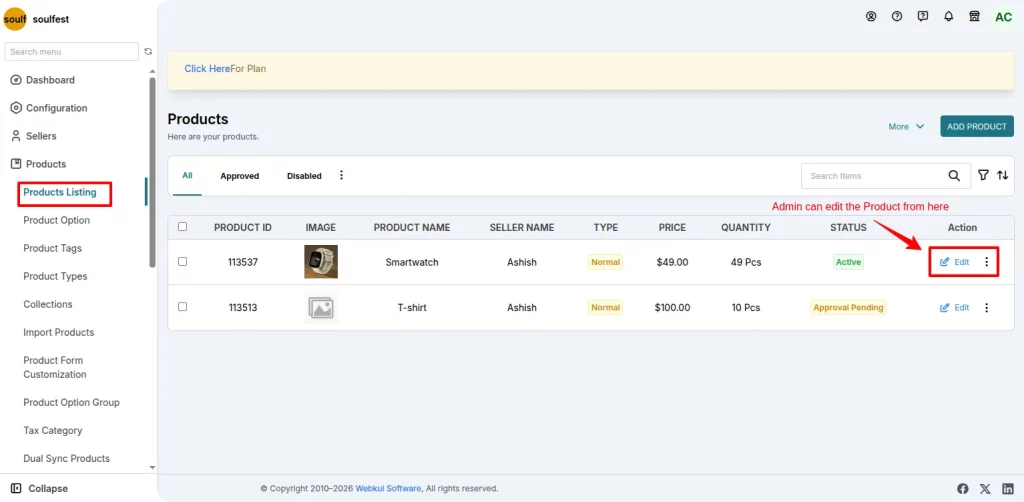
Furthermore, the admin can also view and take action on the products listed by the seller, giving him full control over his store.
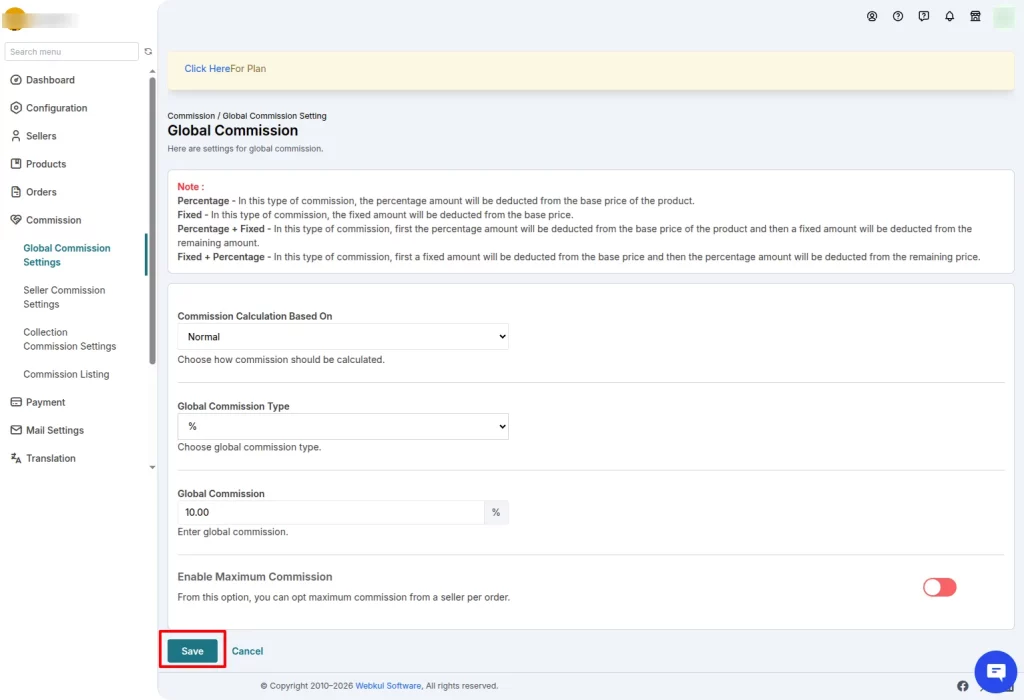
Admin can also set commission to take out their share from the seller’s orders.
To do that, go to Commission > Global Commission Settings and set commission rules, and then save changes.

Steps for Placing an Order on Zoho Commerce
Once the product is successfully listed on the store, the customers can place orders seamlessly just by visiting the store.
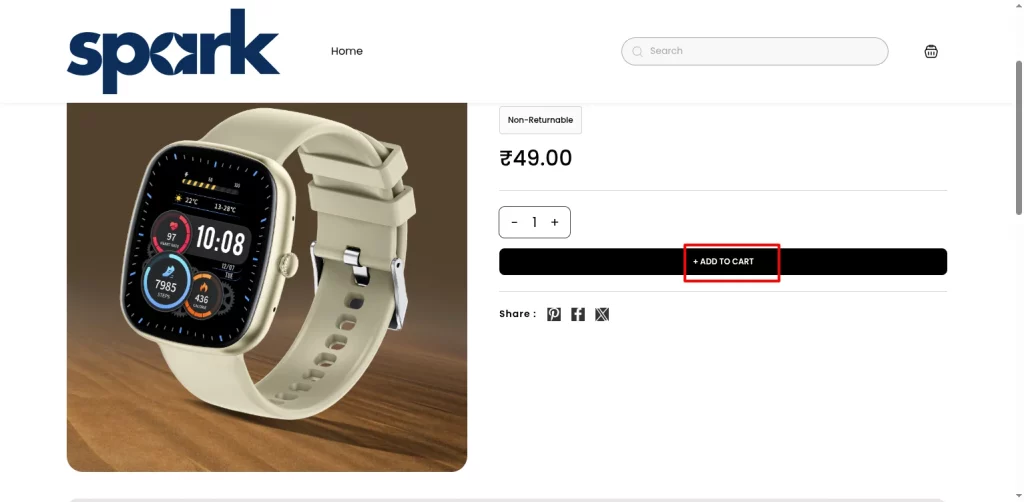
To place an order, go to the store > select the product > click on Add to cart.
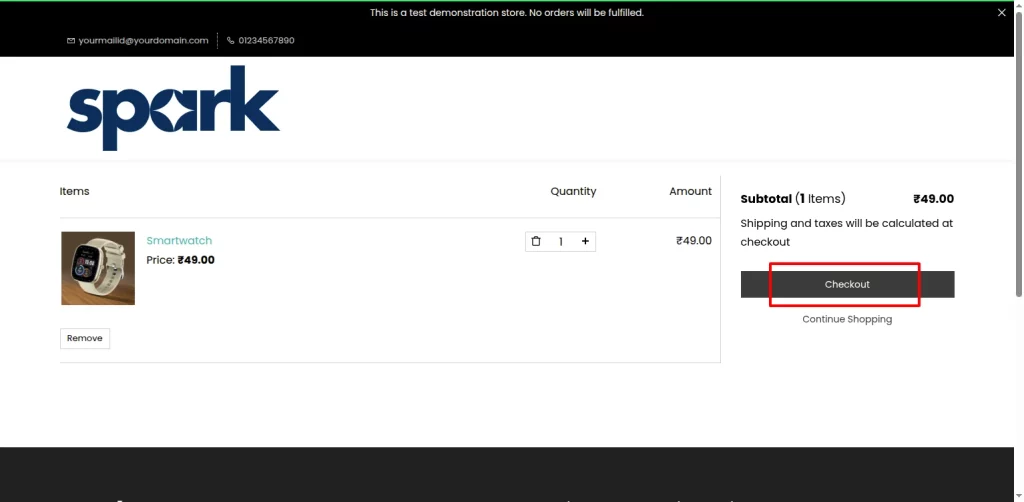
Go to the Cart Icon > Click on the Checkout button.
In this new window, fill in your profile details.
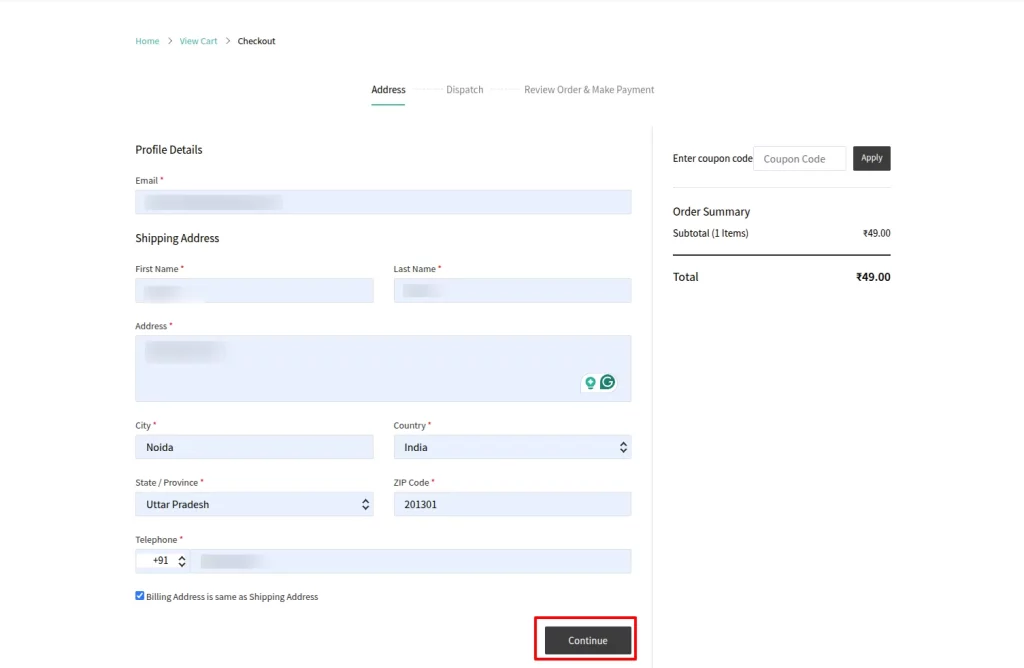

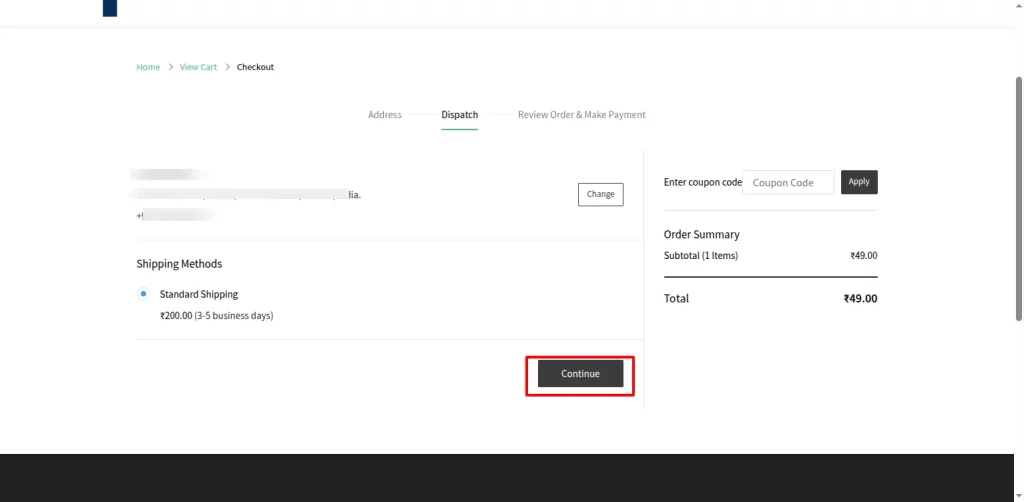
View and click on the continue button.
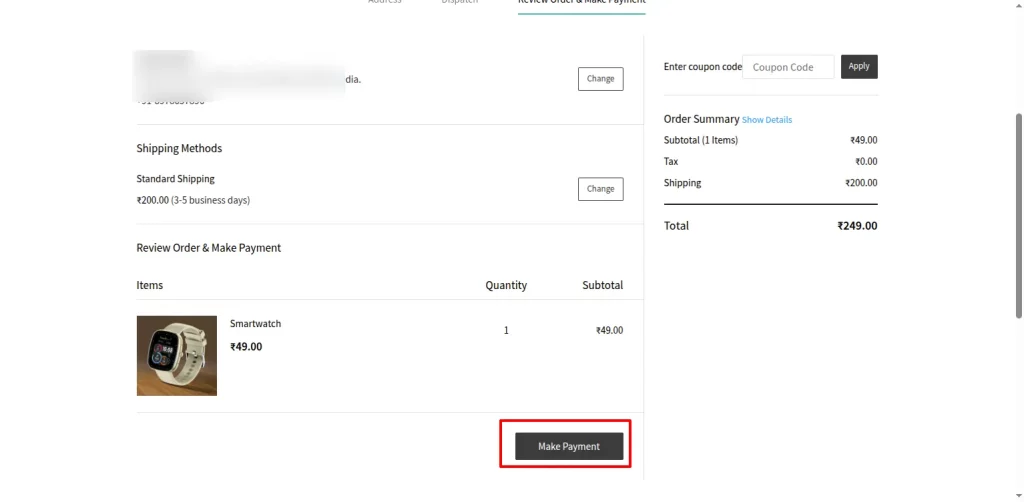
Next, click the Make Payment button to go to the payment page.
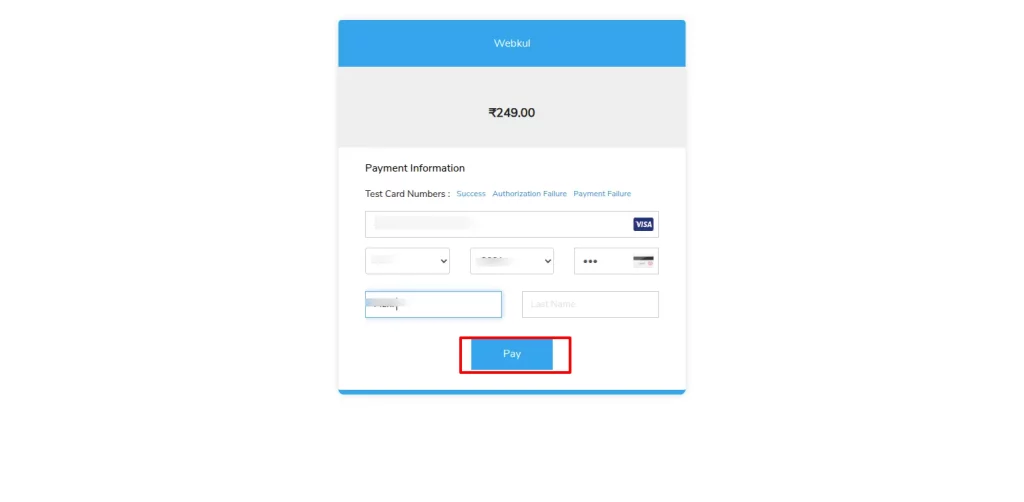
Now add the payment details, and click pay.
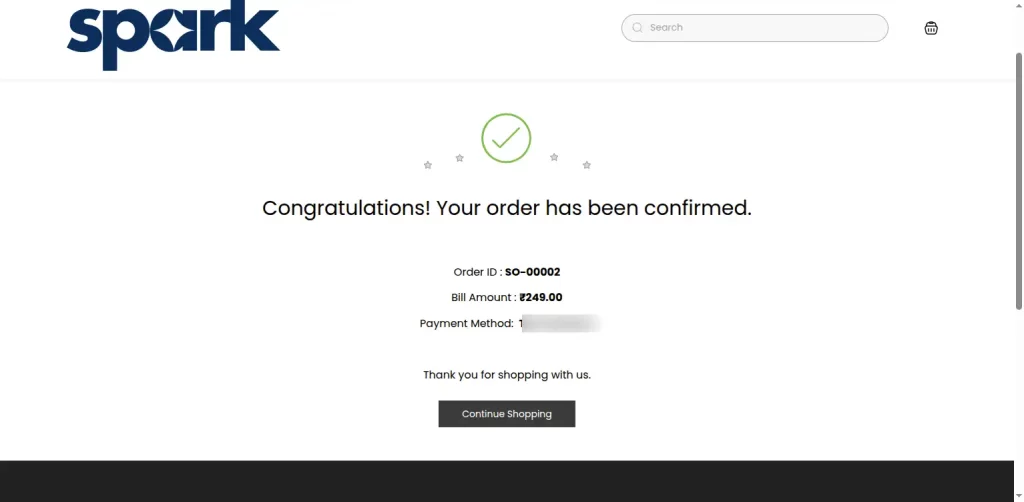
Finally, after the order is placed, you will receive an auto-generated confirmation email.
You can view the placed order details directly in your Zoho Commerce store, under Items > Orders.
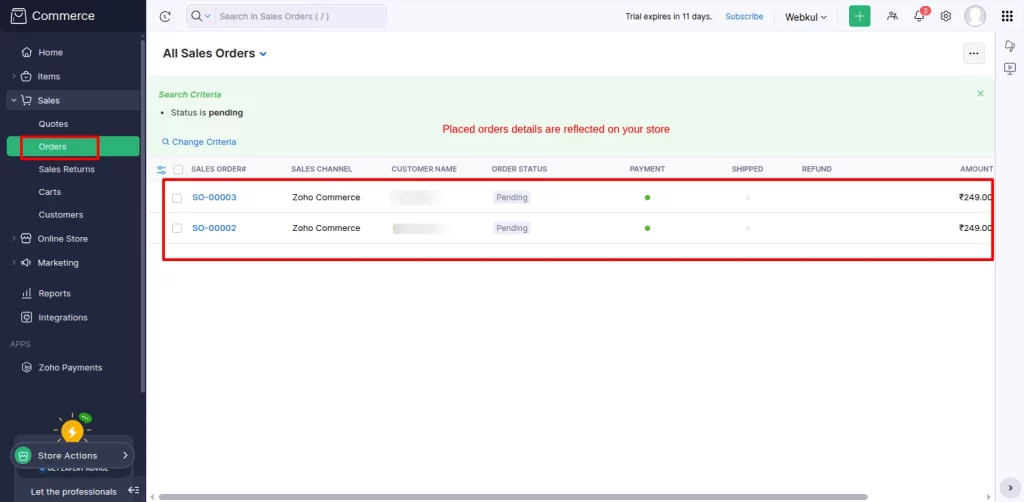
But remember, these details will not be reflected on your admin or seller ends until you create a webhook to update order details in real time.
How to Create a Webhook on the Zoho Commerce Store?
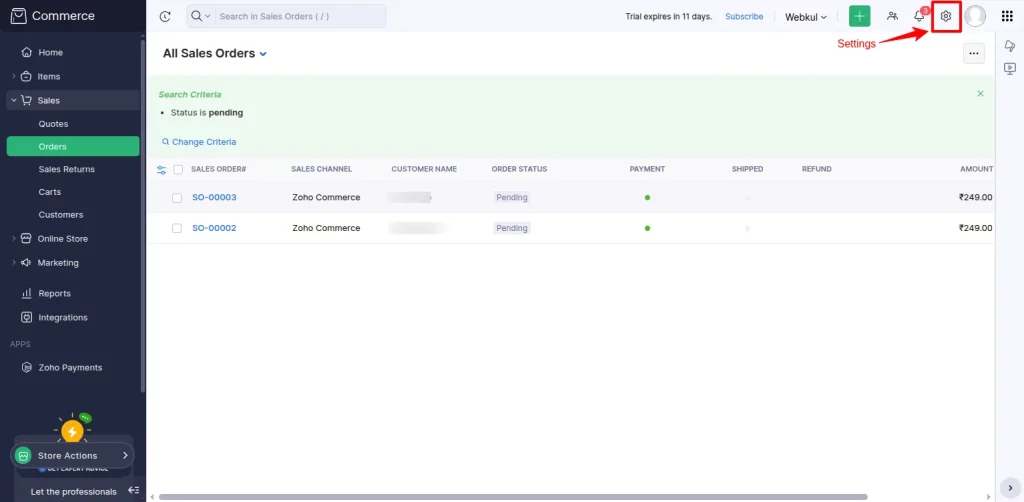
To create a webhook in Zoho Commerce, click on the gear icon in the top-right corner.
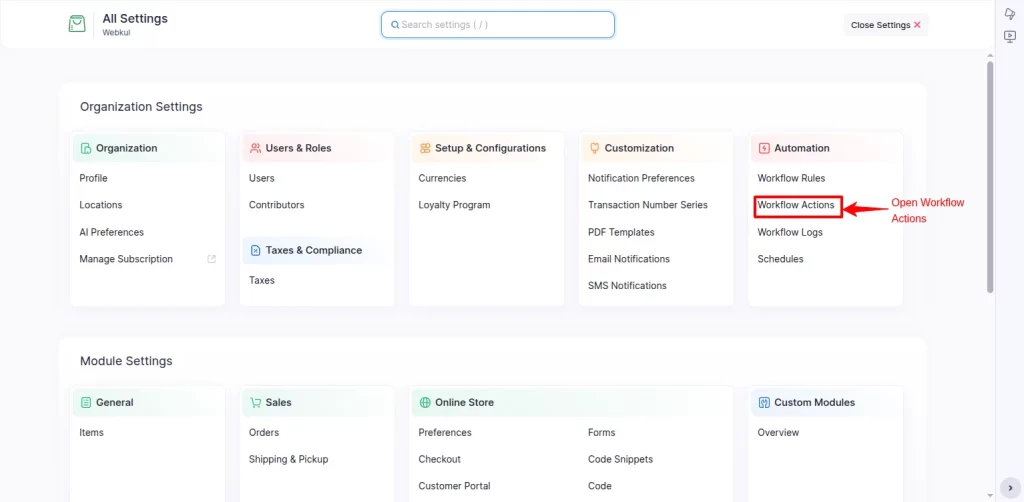
Under Automation > Open Workflow Action.
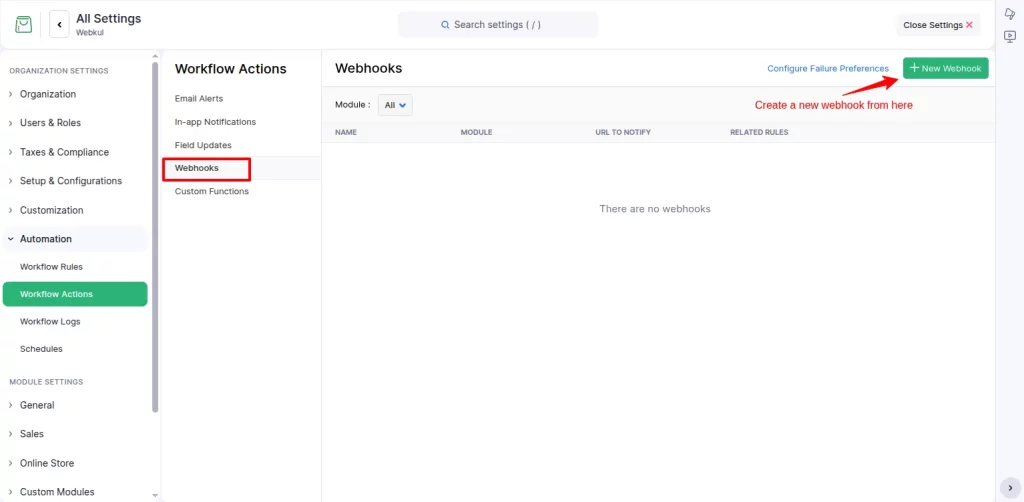
Then, click on the Webhooks option and create a new webhook by clicking the green button.
Next, add the new webhook details and paste this URL for extracting order data.
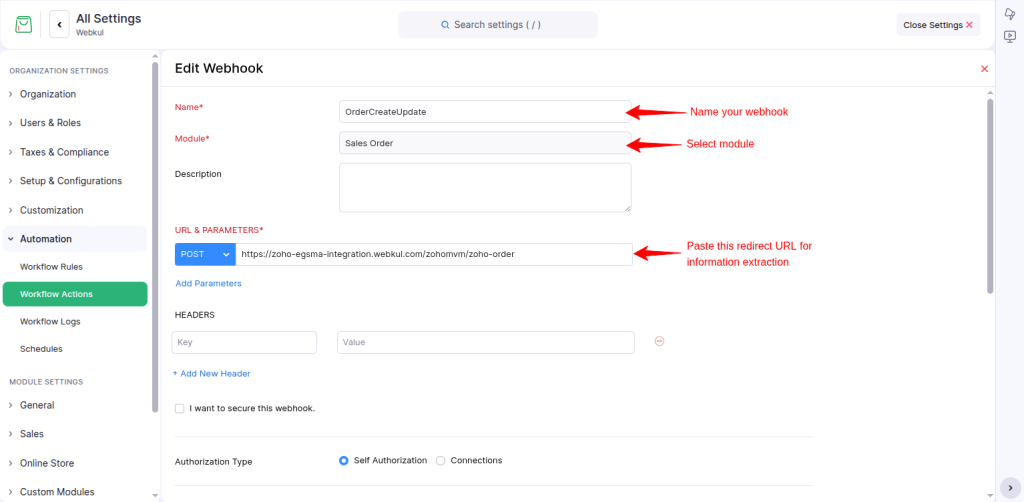
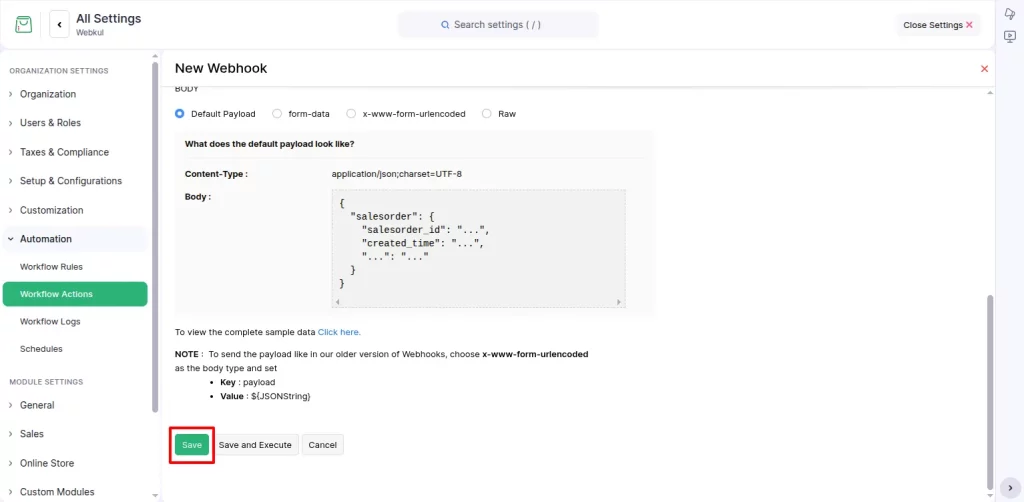
Scroll down and Save changes.
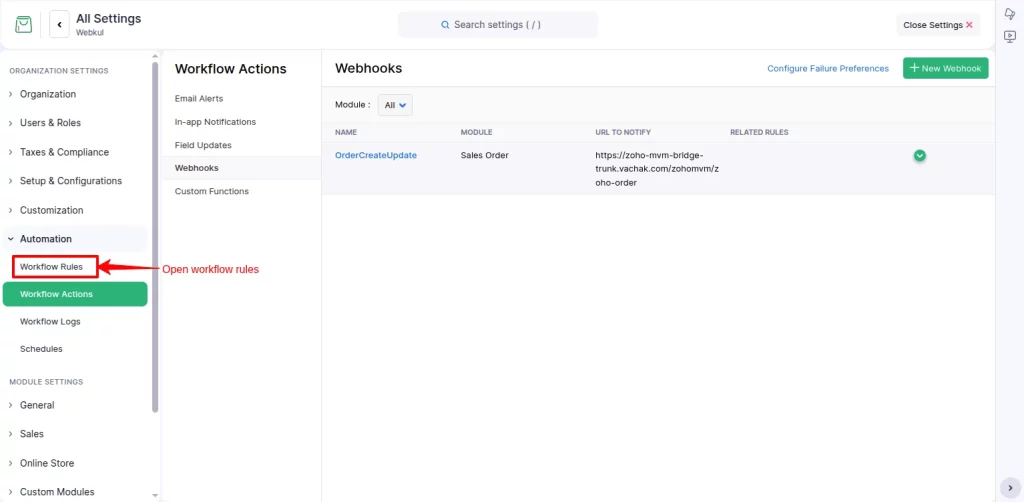
After creating the webhook, click the Workflow Rules.
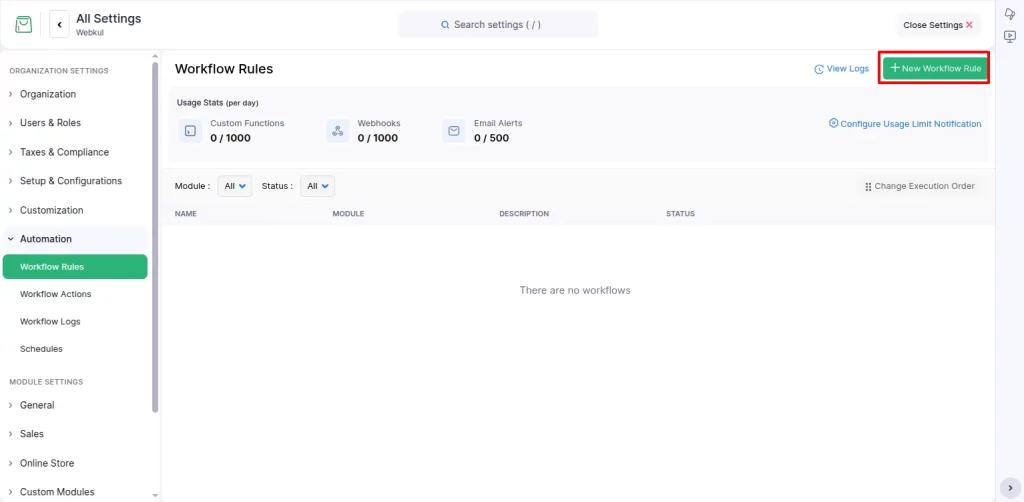
Go to the New Workflow Rules button in the top right corner.
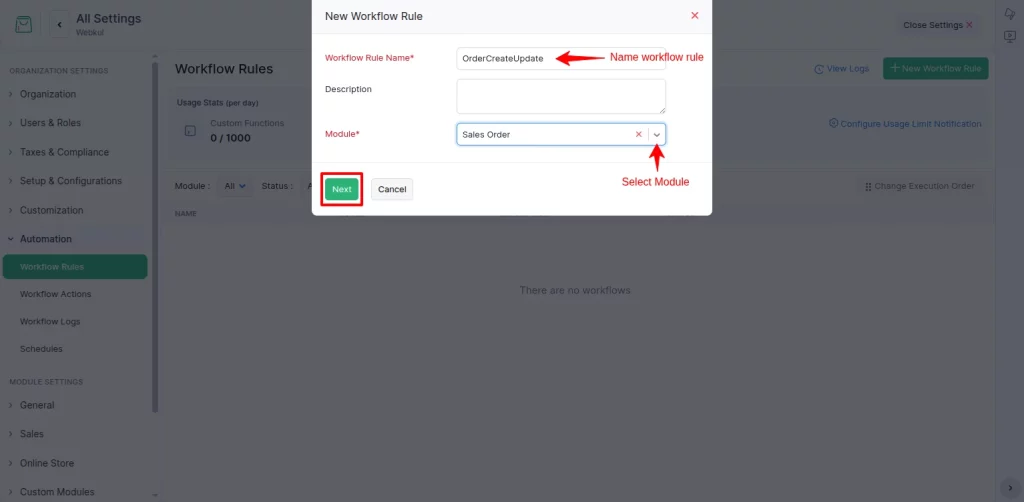
In this pop-up window, add the workflow rule name and select the module ‘Sales Order’.
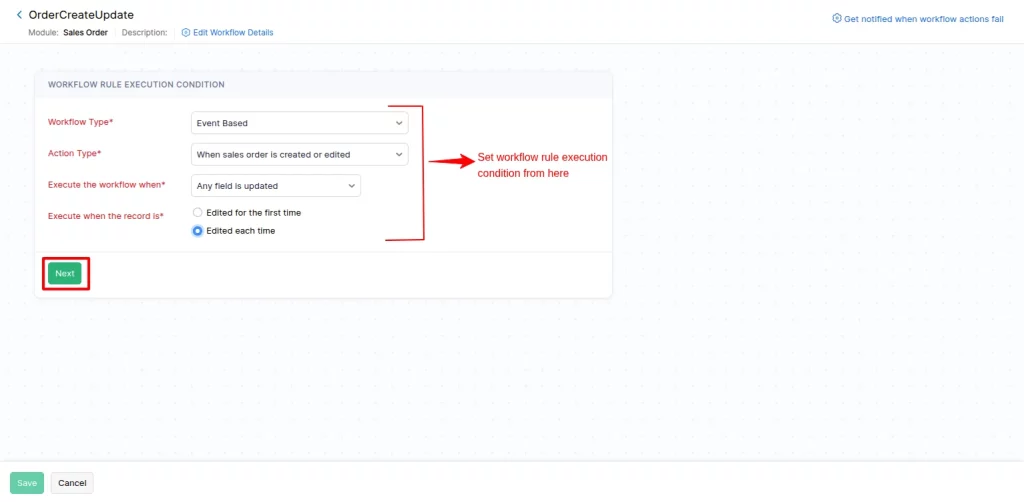
Next, select the workflow rule execution condition from the dropdown, and click on the next button.
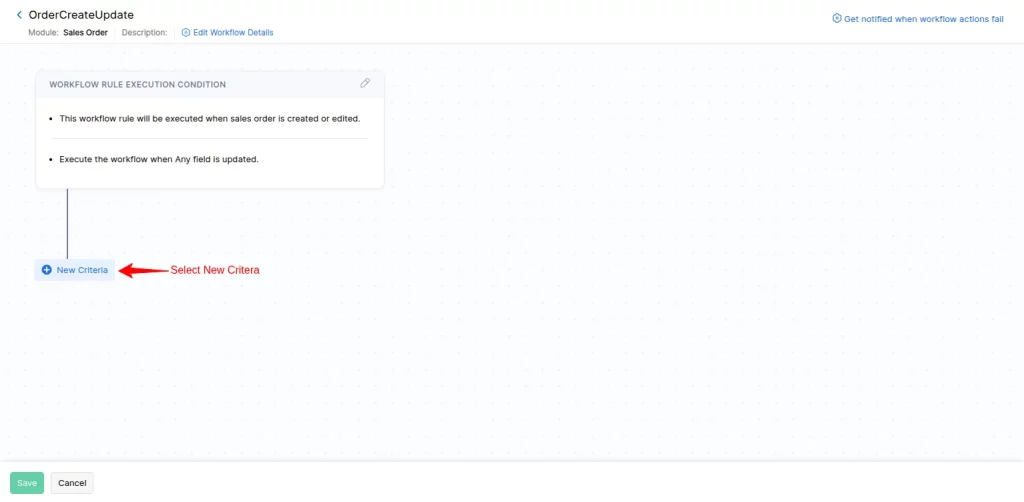
Here, select New Criteria.
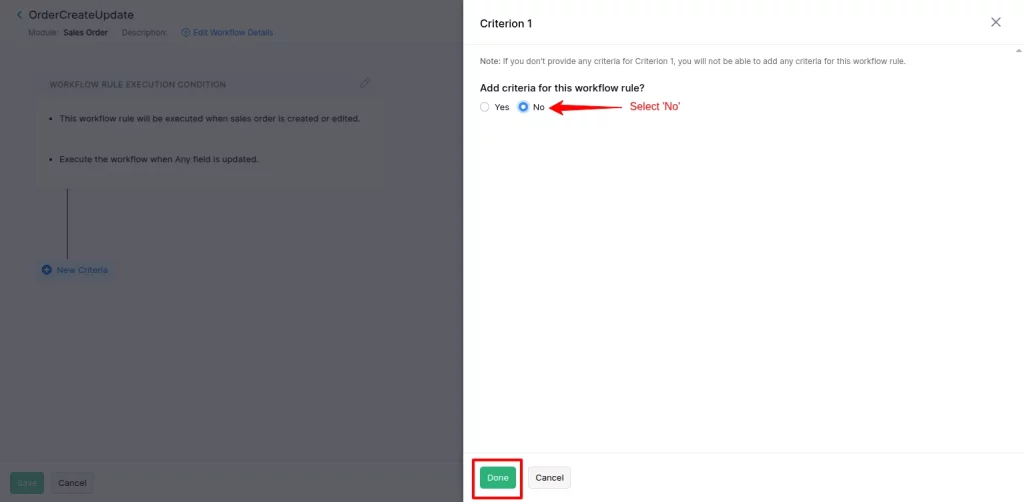
Choose ‘No’ and click on the done button.
Further open Immediate action.
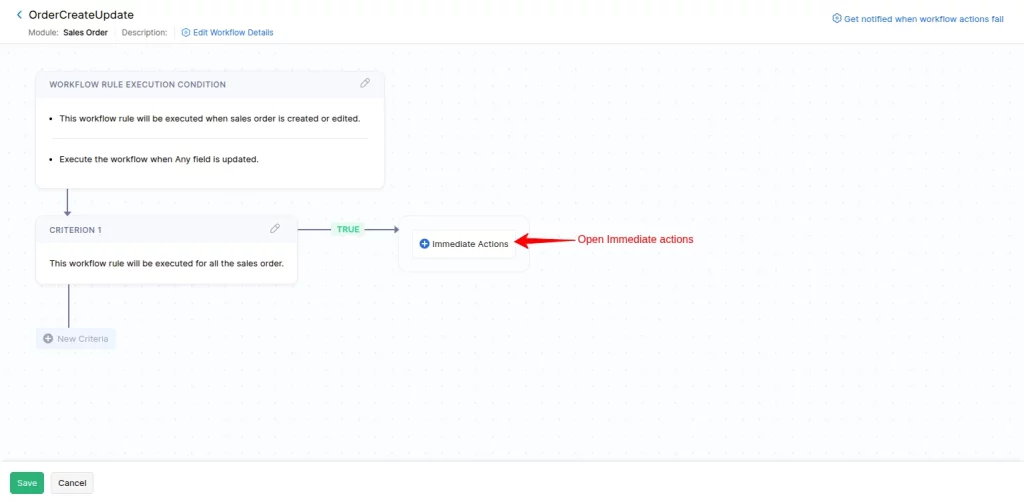
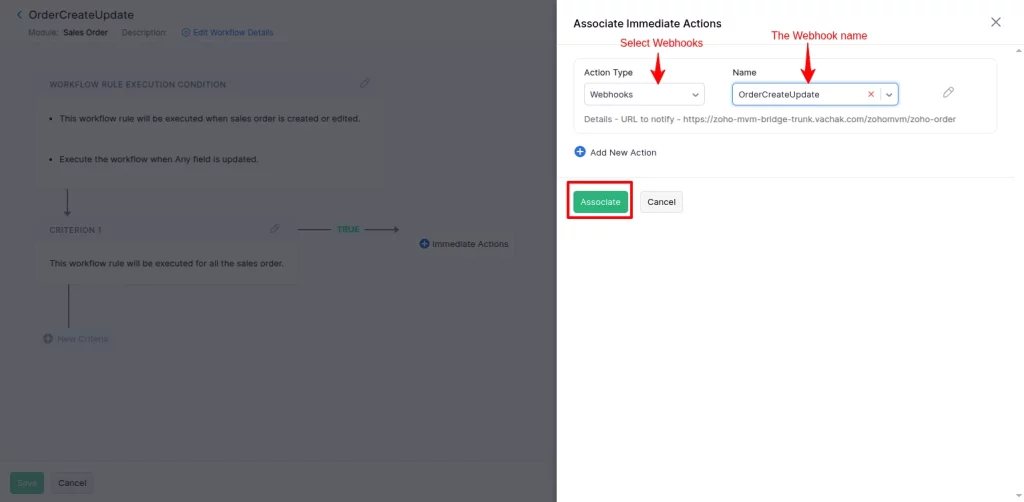
Now, select Webhook under Action Type and Webhook name. It will automatically fetch the Webhook URL details.
Finally, click on the Save button.
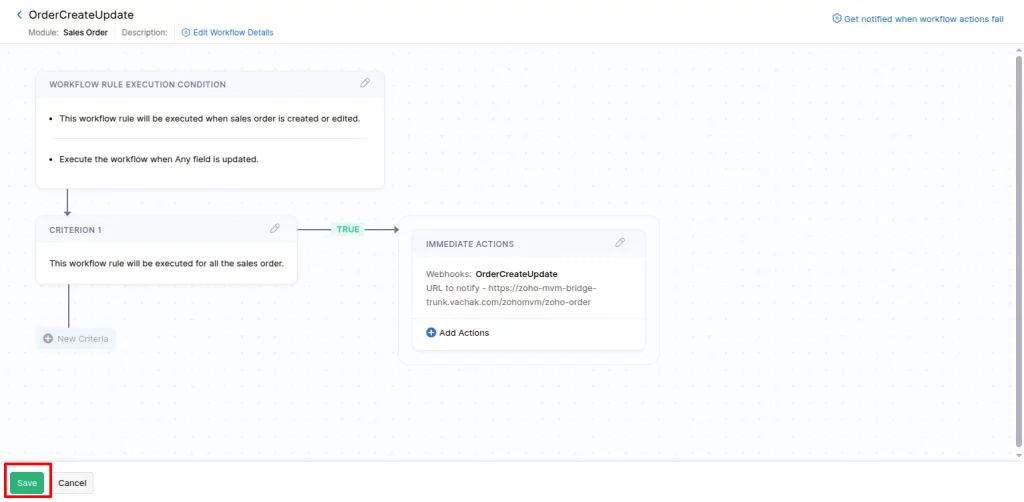
After a successful webhook setup with the workflow rules, orders placed on the Zoho store will automatically sync to the admin and seller’s multivendor platform.
Support
- For any further queries or customizations, click on Create a Ticket.
- To know more about the product, Request a demo.