
Download Files from Salesforce With Lightning File Manager
Managing files inside Salesforce is a daily task for almost every team—sales reps attach proposals, marketers upload creative assets, and service agents log case documents.
But ask any Salesforce user what frustrates them most, and you’ll hear the same answers:
- “I can’t download multiple files at once.”
- “Renaming files is tedious.”
- “Finding the right attachment takes forever.”
Salesforce’s native file functionality is solid, but it comes with limitations that slow users down.
That’s exactly where Lightning File Manager steps in—a powerful Lightning Web Component (LWC) designed to make file handling inside Salesforce smarter, faster, and much more intuitive.
In this blog, we’ll explore why downloading files from Salesforce feels limiting today, how Lightning File Manager removes those roadblocks, and why it’s a must-have tool for businesses.
Download Files From Salesforce: How does it look?
Salesforce offers file upload, storage, and sharing capabilities; however, it’s not optimized for bulk operations or everyday file management tasks. Here are a few common pain points users face:
- No bulk download functionality is available; you’ll need to click through each one to download the file. For large projects, this wastes hours.
- There is no option for quick rename or preview for making small adjustments or checking a file.
- Limited search options to find a specific contract or image across thousands of files feel like searching for a needle in a haystack.
- Teams end up with duplicate files, unused attachments, and scattered storage without better tools.
For growing businesses, these inefficiencies don’t just create frustration—they slow down collaboration and directly impact productivity.
Smarter File Handling with Lightning File Manager
Lightning File Manager is a purpose-built solution that extends Salesforce’s native file management.
It provides users with a modern, intuitive interface featuring powerful features such as mass download, smart search, inline file actions, and record-level previews.
Instead of wrestling with Salesforce’s limitations, users get a streamlined way to handle files—right inside their familiar Lightning workspace.
Note: In addition to downloading files from Salesforce, we also offer a component with extended functionality that automatically converts HEIC images to JPG.
This functionality is useful for iPhone users who want to convert unsupported HEIC images into JPGs that are supported by Salesforce when uploading the image to Salesforce.
Key Features That Change the Way You Work
Let’s look at how Lightning File Manager transforms file management inside Salesforce.
- Mass download files from Salesforce or delete multiple attachments at once.
- Preview PDFs, images, and documents directly in Salesforce, without the need for downloading.
- Users can search files by name, type, ID, or even record name.
- Advanced filters enable you to sort by record type, tags, or date ranges.
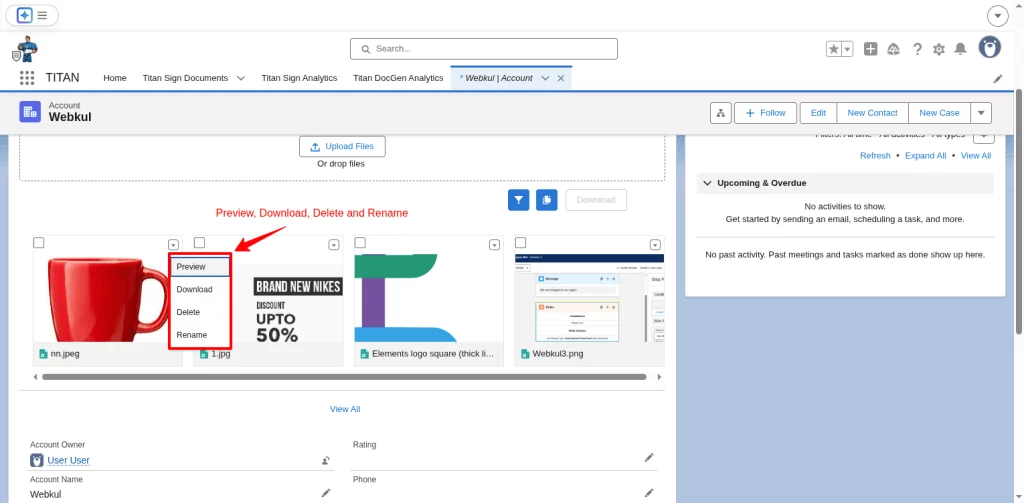
- Each file row comes with inline buttons for renaming, previewing, downloading, or deleting. Plus, confirmation modals reduce the risk of accidental deletion.
- Lightning File Manager is built as a modular LWC; it can be placed anywhere—record pages, home page, or even the utility bar.
- It also follows the Salesforce Lightning Design System (SLDS), so the look and feel blend seamlessly with your Salesforce environment.
- Lightning File Manager uses Salesforce’s own Files API and Apex for content storage and retrieval.
- Record-Level Image Retrieval. Fetching all images linked to each record.
How to Download Files from Salesforce Using Lightning File Manager
Here’s how simple it is to get started after downloading the Lightning File Manager:
- Add Lightning File Manager to a Record Page via Lightning App Builder (drag-and-drop deployment, no coding required).
- Upload files easily with drag-and-drop or traditional selection.
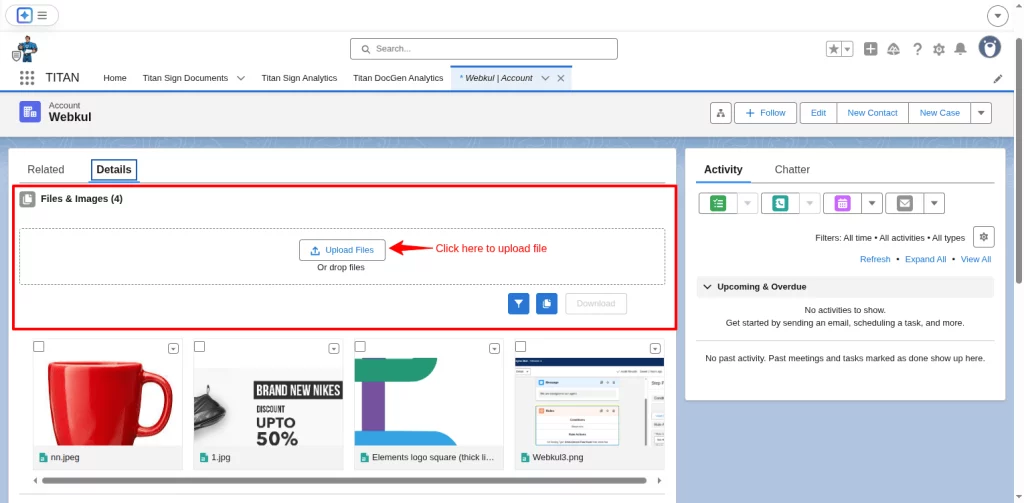

- Use the smart search and filter to locate specific files instantly.
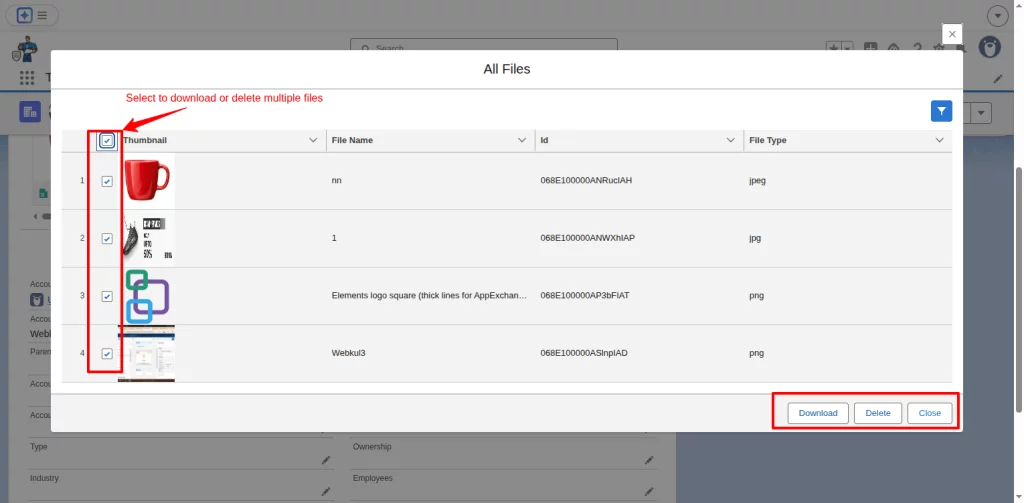
- Select multiple files and click download to save them in bulk.
- Preview or rename files inline without downloading.
- Drag and drop this component on your homepage to directly access it from there. You can get files from any records of an object by selecting those specific records.
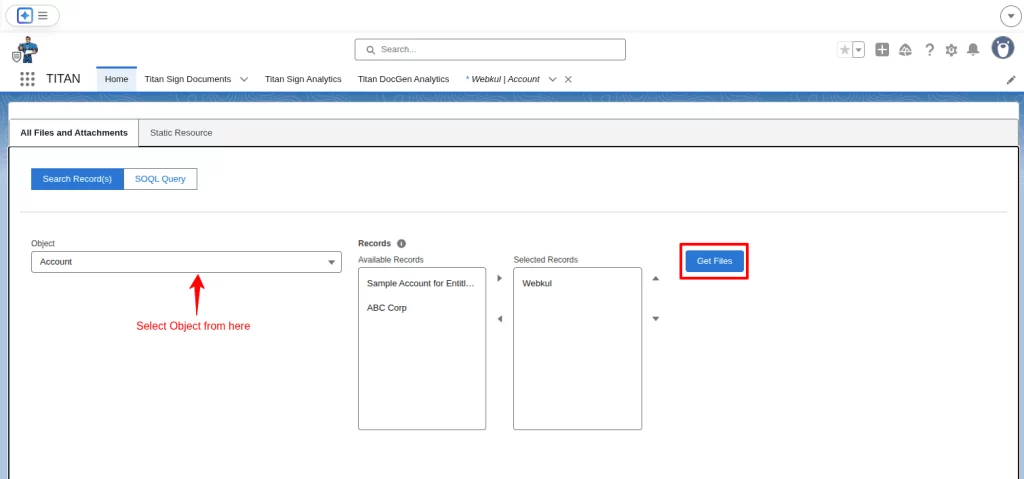

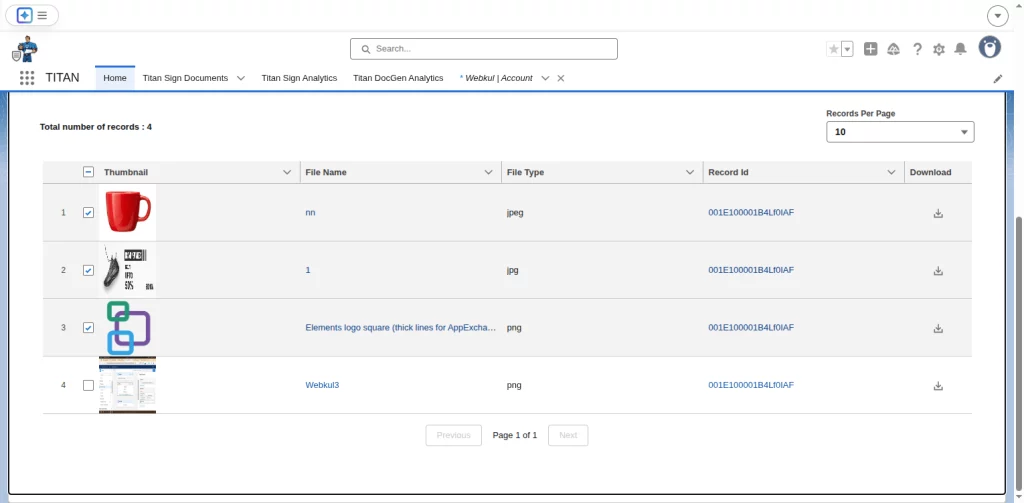
That’s it, these extended functionalities make file management simplified for teams across all departments.
Lightning File Manager vs. Native Salesforce File Handling
| Feature | Native Salesforce | Lightning File Manager |
| Mass Download | ❌ | ✅ |
| Bulk Delete | ❌ | ✅ |
| File Rename | ❌ | ✅ |
| File Preview | Basic | Enhanced with thumbnails |
| Smart Search & Filters | Basic | Advanced |
| Record-Level Image Retrieval | ❌ | ✅ |
Why Businesses Choose Lightning File Manager
Organizations that adopt Lightning File Manager see immediate benefits like
- Faster workflows – With enhanced functionality like filters and bulk selection, there will be minimal manual file operations.
- Better adoption – Teams love tools that are simple yet powerful.
- Scalability – The component can be used across all departments, like sales, service, and marketing.
- Security & compliance – This product is 100% native Salesforce compatible. Businesses don’t have to upload their data to any third-party platforms.
- Future-proof – Built on modern Lightning Web Components.
Conclusion
If your teams are still struggling with basic tasks like downloading multiple files or finding the right attachment, it’s time to upgrade.
Lightning File Manager makes it easy to download files from Salesforce.
It lets you preview and manage them more efficiently. All without leaving your CRM. Don’t let file management be the weak link in your Salesforce workflow.
With Lightning File Manager, you unlock speed, organization, and productivity that your teams will thank you for.
Support
Ready to experience the difference? Start simplifying Salesforce file management today with Lightning File Manager.
Contact us at support@webkul.com or raise a ticket.