
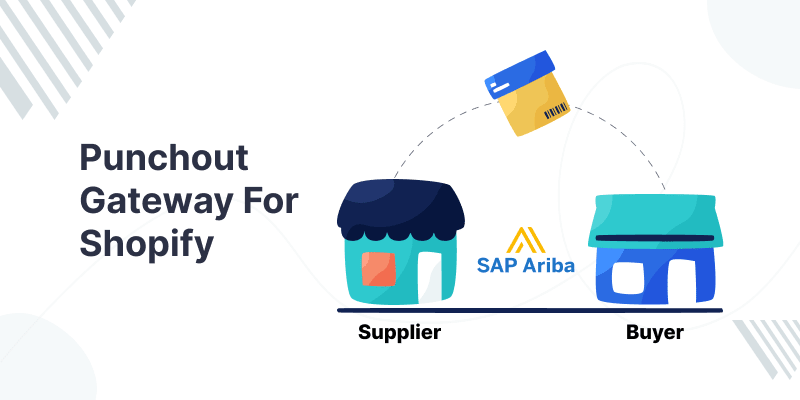
PunchOut Gateway for Shopify is a powerful B2B integration tool that connects your online store with enterprise-level e-procurement systems.
Buyers can access your Shopify catalog directly from their procurement dashboard, streamlining purchases, reducing errors, and automating workflows for efficient B2B transactions.
What Is a PunchOut Gateway?
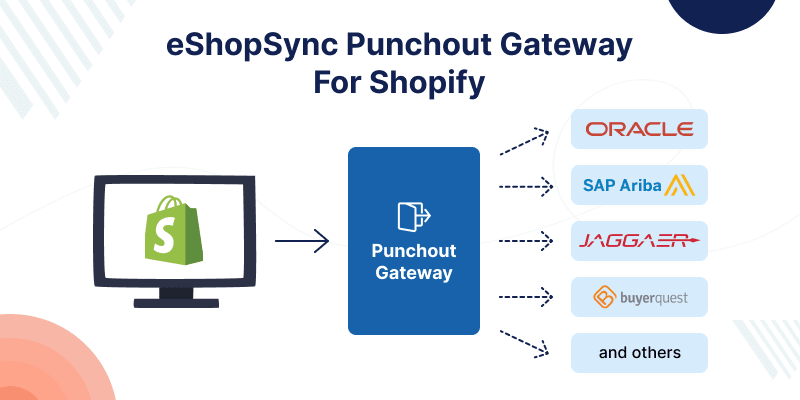
A PunchOut Gateway integrates your e-commerce store, such as Shopify, with buyers’ e-procurement or ERP systems via recognized standards like cXML and OCI.
Buyers can browse your catalog, add items, and send purchase details back to their system for approval. This eliminates manual steps and errors, ensuring real-time accuracy and automation.
Features of PunchOut Gateway
A PunchOut Gateway bridges the complex procurement gap between your Shopify store and enterprise-level e-procurement systems.
- Easy installation and configuration
- cXML support
- Sends cart data to external procurement systems
- Receives order confirmations from procurement platforms
- Creates orders in Shopify via Admin API
- Tracks the total carts created
- Tracks total orders submitted
- Calculates total order value (YTD)
- Calculates the monthly average order value
- Displays monthly revenue in a line chart
- Shows recent carts and orders
Why Choose PunchOut for Shopify?
- Eliminates Manual Order Entry: Buyers assemble their order on your Shopify catalog and send it back in a structured format, with no manual data transfer.
- Real-Time Pricing & Inventory: View accurate, contract-specific pricing and live stock directly in the punchout session.
- Seamless Cart & Order Flow: Data flows directly from a buyer’s system into Shopify and back again for fulfillment.
- Broad ERP Compatibility: Prebuilt connectors support platforms like Coupa, SAP Ariba, Oracle, Workday, Jaggaer, and hundreds more.
- Automation Beyond Catalog: Advanced use cases like Automated Shipping Notices (ASNs), Purchase Orders (POs), and e-Invoices become available via managed integrations.
How PunchOut Integration Works on Shopify
| Step | Description |
|---|---|
| Initiate PunchOut Session | Buyer clicks from their procurement tool, triggering a session with your Shopify store. |
| Browse & Build Cart | Buyer shops specific categories/products with customized pricing and builds the cart. |
| Transfer Cart | Cart content is returned in cXML or OCI format to their e-procurement system. |
| Process Order & Notifications | Shopify then receives the order and can automate downstream steps such as ASNs and invoices when supported. |
How to Set Up eShopSync Punchout Gateway for Shopify
- To set up the PunchOut Gateway for Shopify, first install the app from the Shopify App Store.
- After installation, you need to choose a plan. eShopSync offers two options: yearly or monthly.
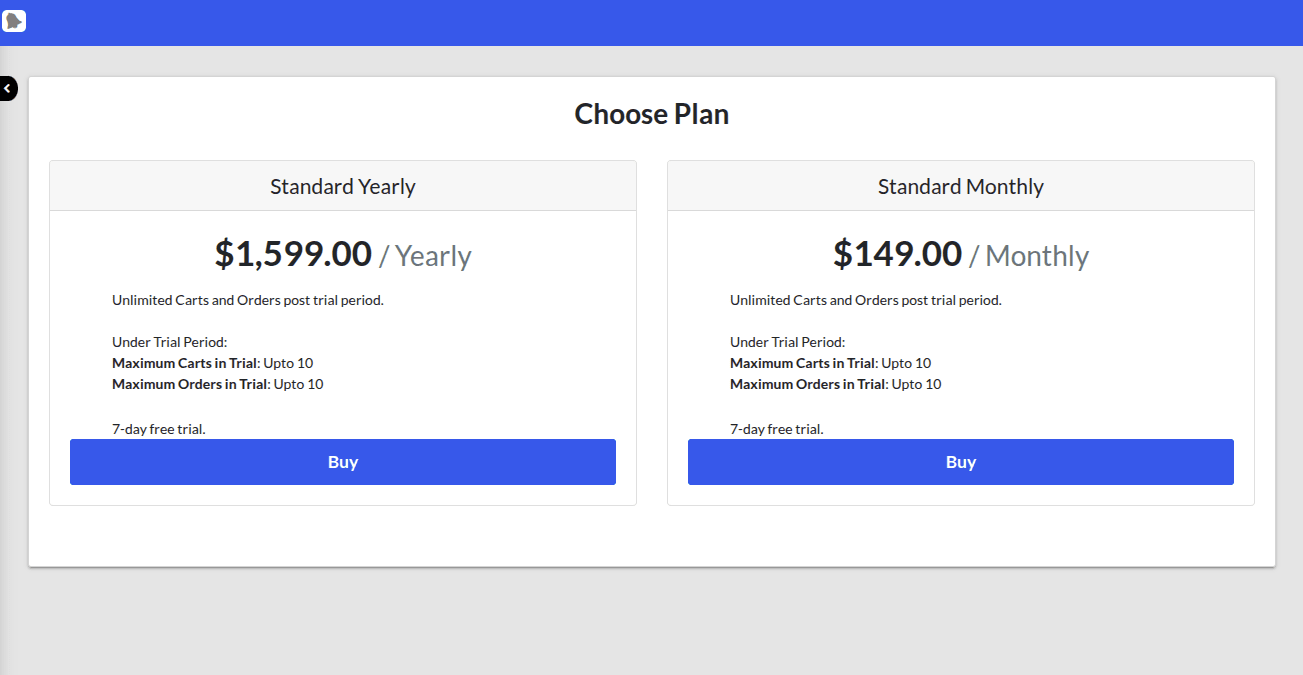

Here are two plans offered for this PunchOut Gateway for Shopify: one is standard yearly, and one is Standard Monthly. You can choose according to your requirement.
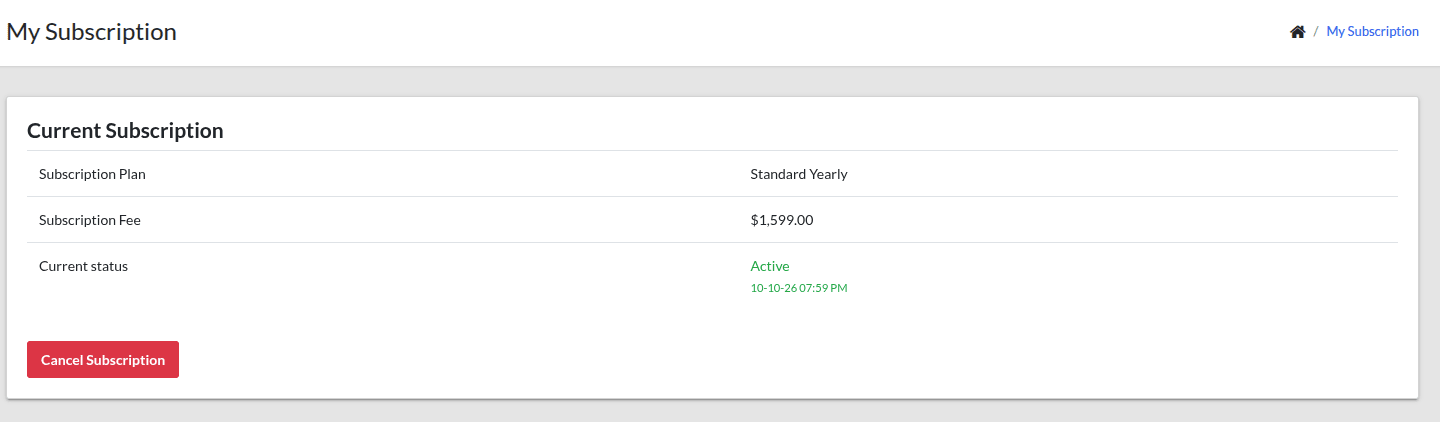

After subscribing to the plan, you will get this kind of confirmation.
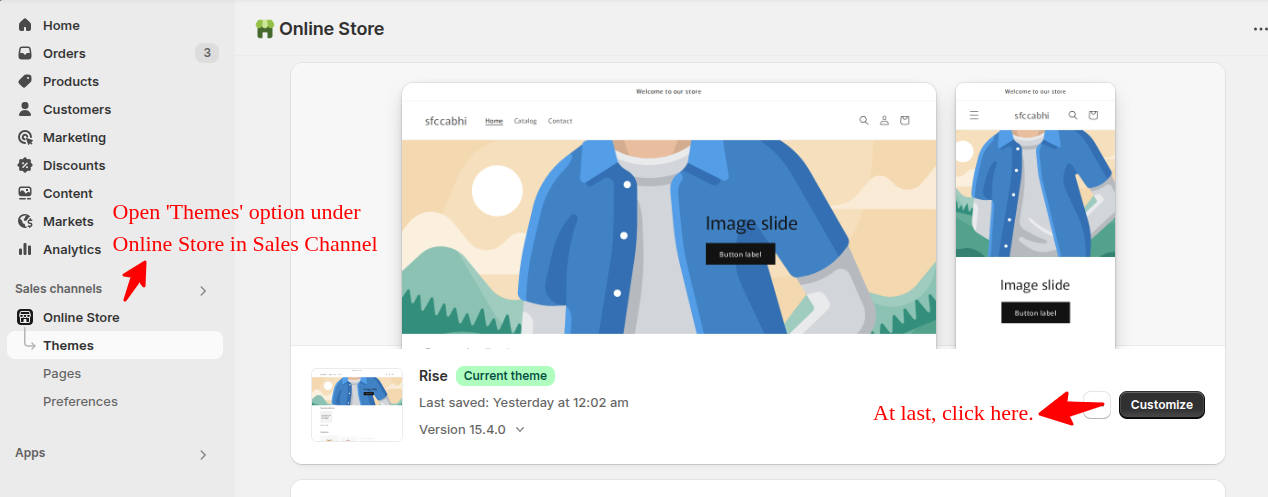

Here on your Shopify Online store, you need to select ‘themes’ under the Online store in the Sales Channel. And then click on the ‘Customize button’ at last.
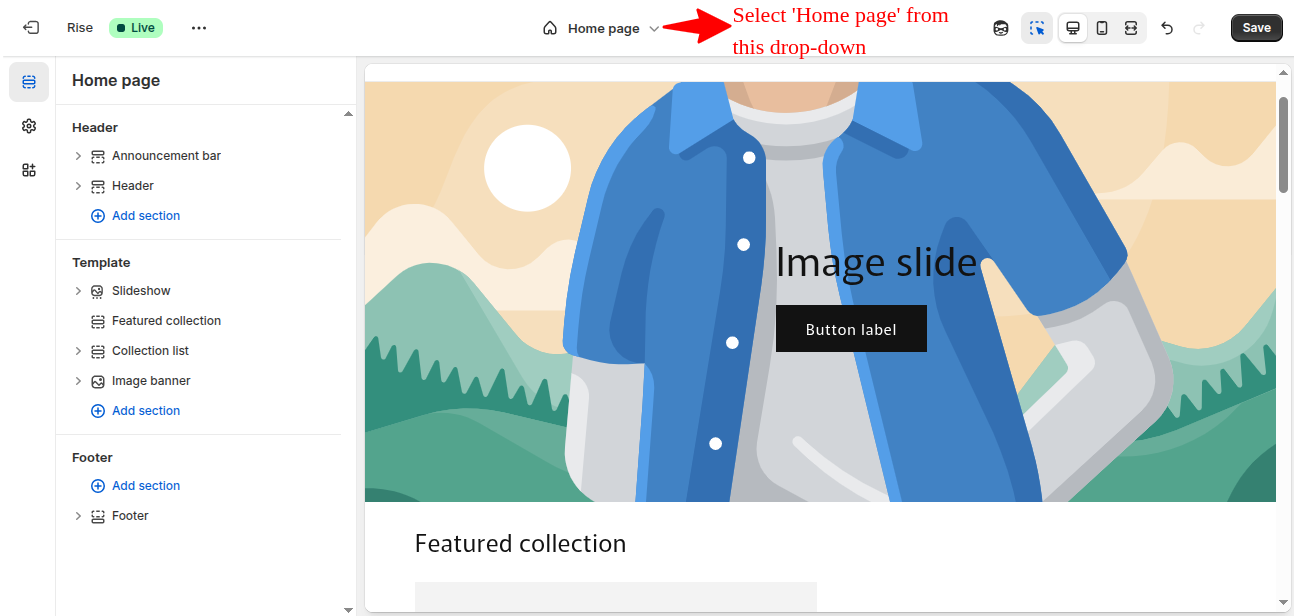

- Select Homepage from the dropdown
- Click on Add Section under template
- Available Sections will be visible
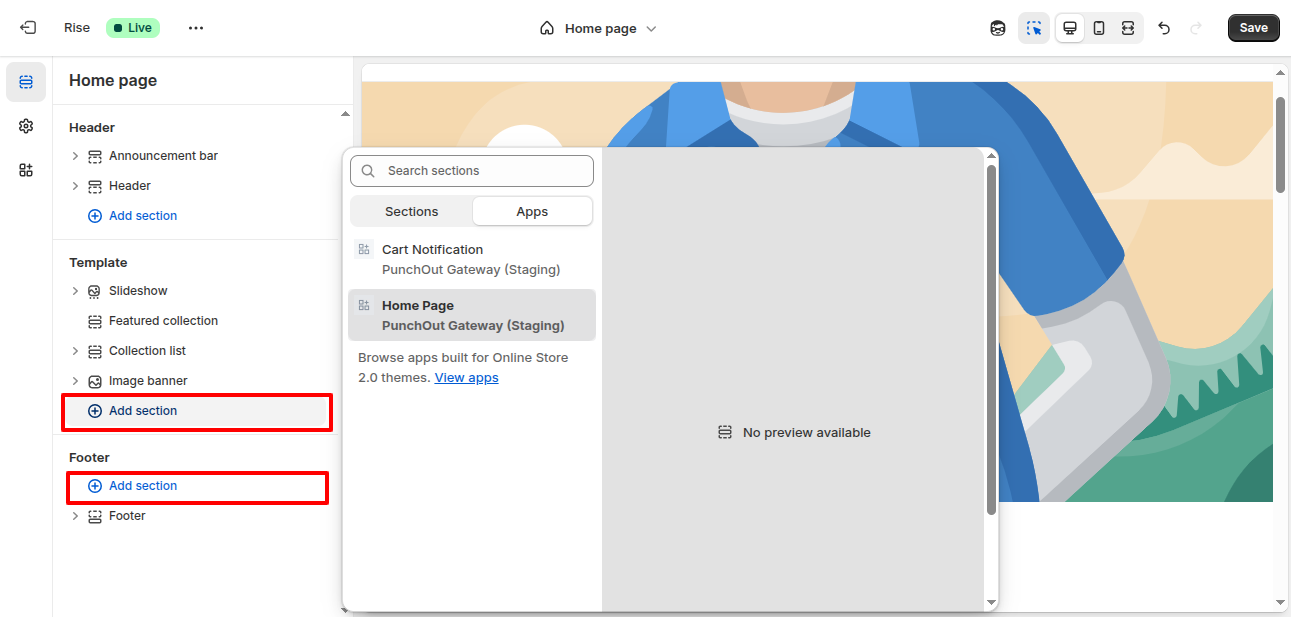

- Go to Apps and select ‘Homepage’ Section
- Click on Add Section under Footer
- Again, go to the apps and select ‘Cart Notification’
- Click Save from the Top Right corner
Configuration Steps
After successfully installing the Shopify Online Store, configure it from the Shopify dashboard.
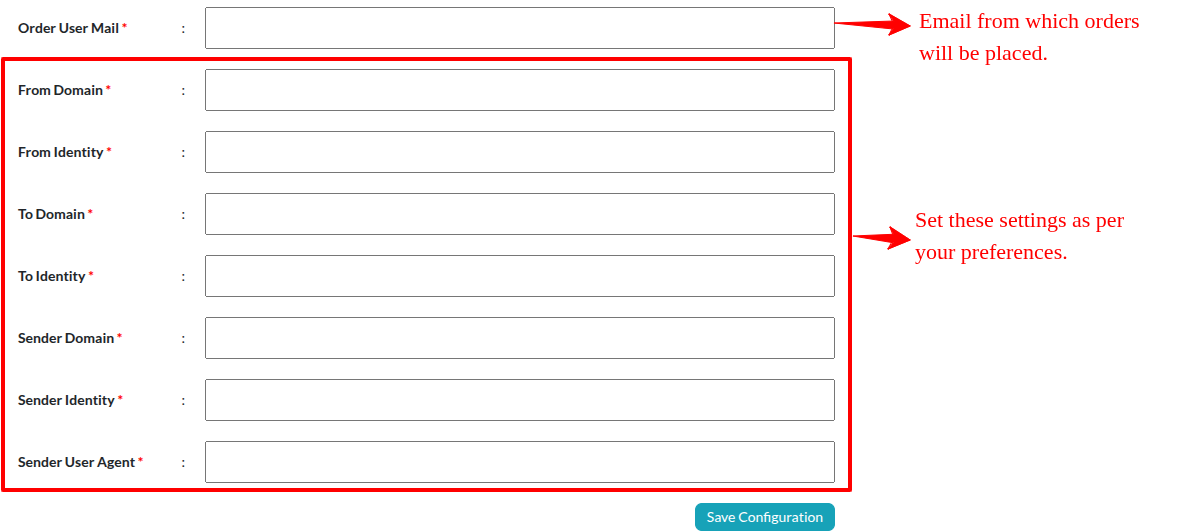

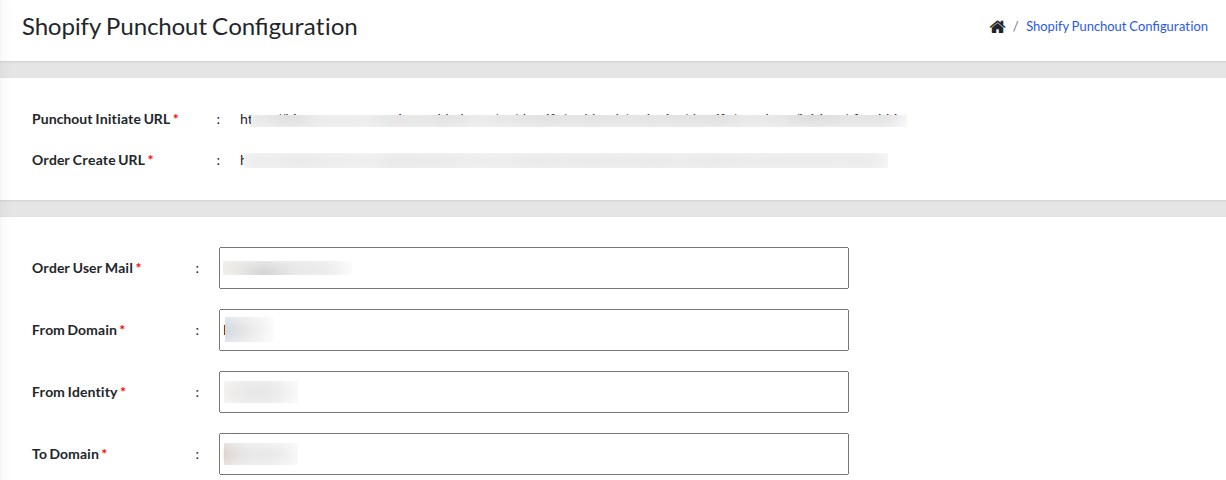

After successful configuration, you will get two URLs: one is the ‘Punchout Initiated URL’ and the other is the ‘Order Create URL’
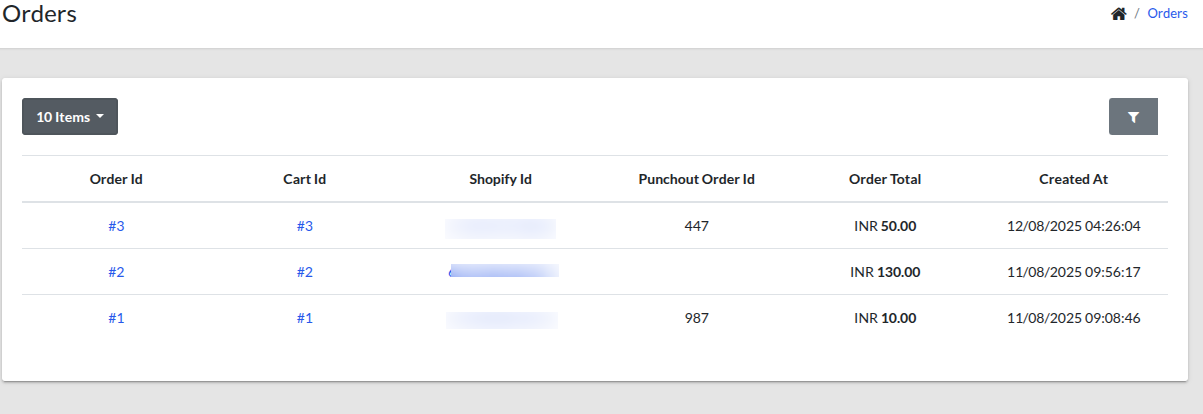

At the Configuration page, you will get the ‘Order Dashboard’. Where you can see your details like Order ID, Cart ID, Shopify ID, PunchOut Order ID, Total Order list, and with date & time.
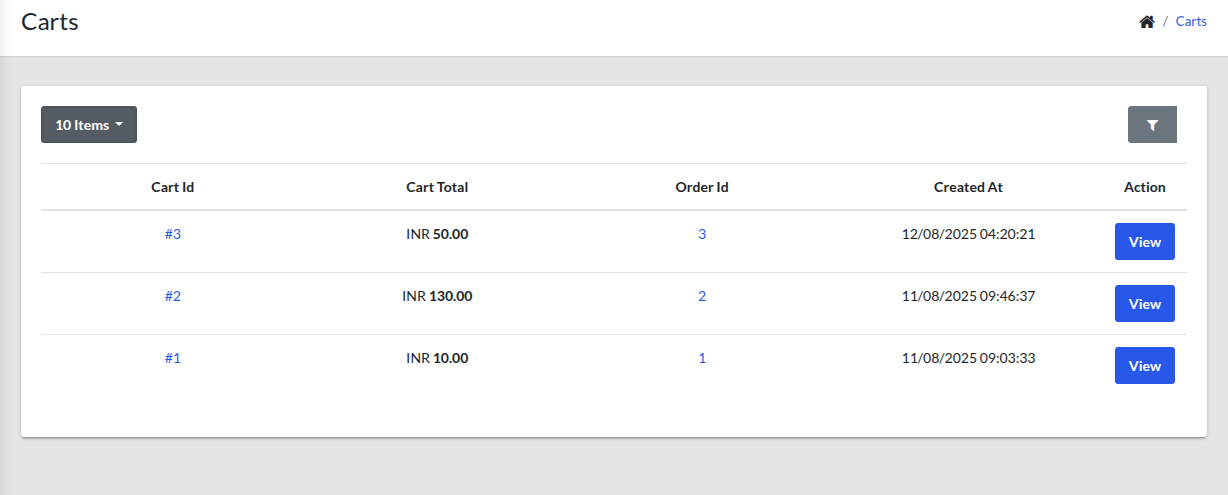

In ‘Cart Section’ you can visualise the price of your order item detail in brief with time and date.
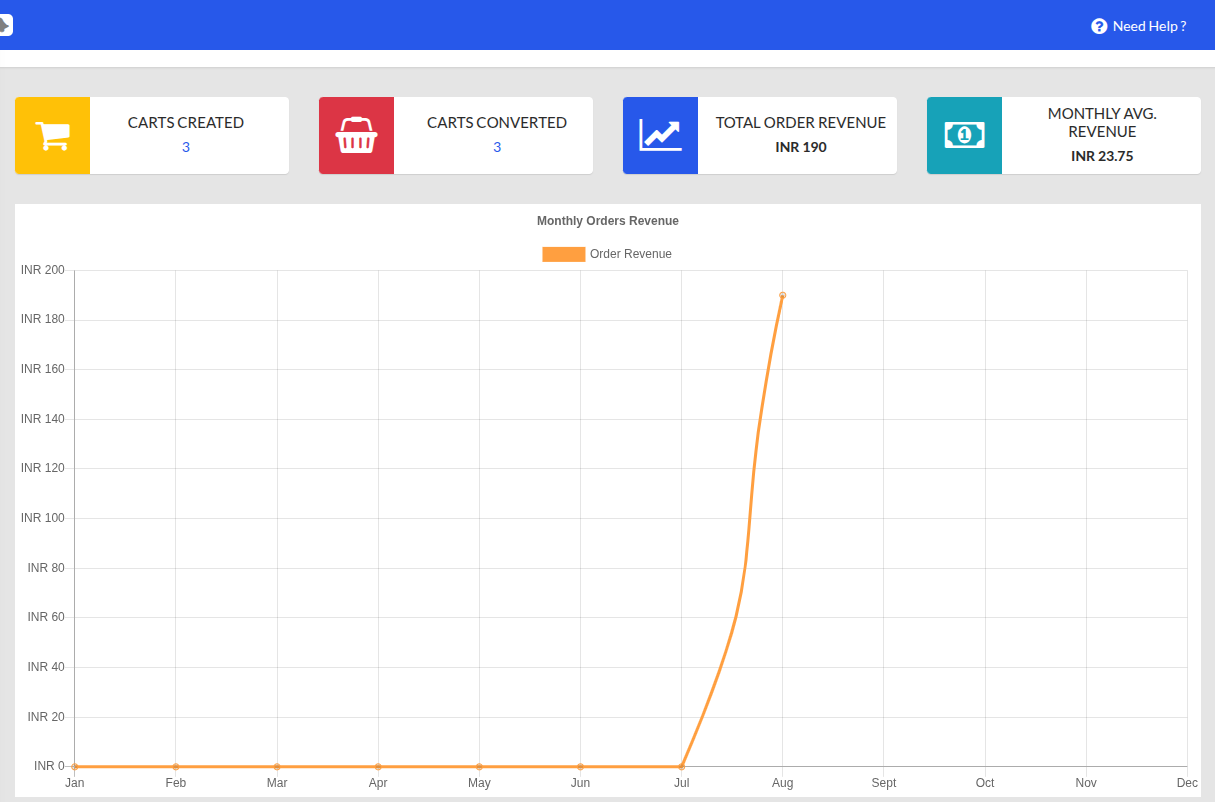

In this dashboard, you can view complete data on orders generated, orders converted, and total deliveries, along with a monthly revenue model displayed in graphical form.
Key Benefits for Your Shopify Store
- Greater B2B Reach: Enables selling to enterprise buyers requiring punchout support. Punchout Catalogs eShopSync
- Operational Efficiency: Reduces manual data work, eliminates transcription errors, and speeds up order fulfilment.
- Better Customer Experience: Clients buy directly within their familiar procurement interface.
- Scalable Setup: Works across multiple buyers with unique configurations and pricing.
- Revenue Growth: Simplifying procurement means fewer barriers, better opportunities to close large B2B deals.
Conclusion
Adopting a PunchOut Gateway for Shopify propels your e-commerce operations into the enterprise realm, streamlining procurement, reducing friction, and opening up B2B growth channels.
Whether using TradeCentric, PunchOut Catalogs, or Greenwing, these tools turn Shopify into a powerful, automated, and institutional-grade purchasing platform.
Support
- For any further queries or customizations, click on Create a Ticket.
- To know more about the product, Request a demo.
- To view all our applications of SAP, you can visit eShopSync.